
How to save domains in your favourites
- Favourite domains: click the heart next to a name in the search results to save it in your “Favourites”.
- You find the list in the client area under “Domains” → “Favourites”, or with the heart at the top of the site.
- Each favourite shows if it is still free, its first-year price and your note.
- “Register all available” puts all the free favourites in the cart. Saving favourites is free.
Favourite domains are a free shortlist in your Gatehills account. Click the heart next to a name in the search results, then find it under Domains → Favourites. Each favourite shows if it is still free, its first-year price and your note. You can save up to 500 names per account.
The list is saved in your account, so you find it on every device and in the app. Everyone in the account who can view domains sees the same domain shortlist. That is handy when you choose a name with a partner or a colleague. A favourite does not reserve the name: only a paid order does.
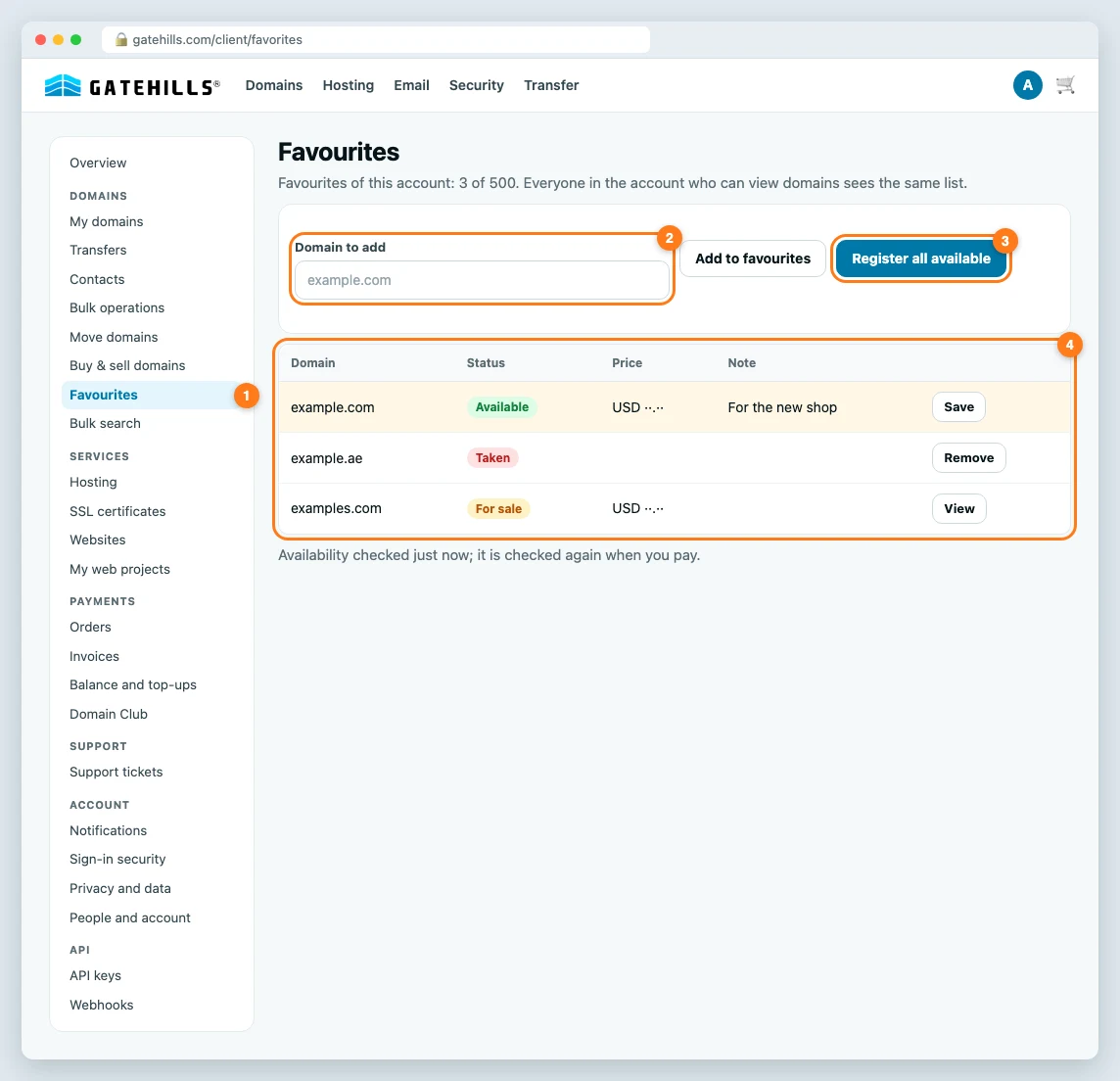
How do I save favourite domains?
Save and manage your favourites
- Save a name with the heart
In the results of the domain search or of AI search, click the heart next to a name. The first time you are asked to sign in. Click the heart again to remove the name.
- Open your favourites
In the client area choose “Favourites” in the menu (1), under “Domains”. On the public site you can also click the heart at the top of the page. At the top you see how many favourites the account has, out of the maximum.
- Add a domain by hand
In “Domain to add” (2) write the full name, for example “example.com”, and click “Add to favourites”.
- Check status and price
In the list (4) each name shows “Available”, “Taken” or “For sale”, with the first-year price. Availability is checked when you open the page and again when you pay.
- Write a note
In the “Note” column write a reminder, for example who suggested the name or what it is for, and click “Save”.
- Register the free names
Click the cart button on a row to add one name, or “Register all available” (3) to add all the free favourites to the cart at once. Then continue to checkout.
- Remove what you no longer need
Click “Remove” on the row. For a name marked “For sale”, click “View” to see the offer on the aftermarket.
What does the status of a favourite mean?
| Status | What it means | What you can do |
|---|---|---|
| Available | Nobody has registered the name yet | Add it to the cart, or use “Register all available” |
| Taken | The name is registered by someone else | Search it to see options such as a broker or a transfer |
| For sale | The owner sells it on the Gatehills aftermarket | Click “View” to see the price or make an offer |
| Check unavailable, try again later | The registry did not answer in time | Open the page again later |
Favourites or cart: what is the difference?
| Favourites | Cart | |
|---|---|---|
| What it is for | A shortlist to decide later | The names you are about to pay for |
| Account needed | Yes, to save a name | Only at checkout |
| Shared with the account | Yes, with the people who can view domains | No |
| Reserves the name | No | No, only payment does |
Use favourites when you want to save a domain name without buying it yet. Notes can be up to 200 characters: write who suggested the name, or which project it is for.
Do I need an account?
Yes. Favourites are saved in your account, so you need to sign in. Searching remains possible without an account.
Who can see my favourites?
Everyone in the account who can view domains sees the same list. See people and account.
How many favourites can I save?
The page shows how many you have and the maximum for the account, for example 3 of 500.
Is the price in the list final?
It is the first-year price at the moment you open the page. The cart shows the final price, with renewal, VAT and fees, before you pay.
What does For sale mean?
The owner sells the name on the Gatehills aftermarket. Click View to see the price or make an offer. See buy a domain on the aftermarket.
Related guides