
How to invite people and manage access to your account
- On “People and account” you manage your team members: who can use the account and with which functions.
- You can invite colleagues as secondary users and give each one only the functions they need, for example DNS or invoices.
- If you have access to more than one account, you switch between them with “Switch account” or the “Active account” menu.
- The primary user always has all functions and cannot be removed.
To give team members access to your Gatehills account, invite them as secondary users from People and account and tick only the functions each one needs. Each person signs in with their own email and password. You can change their functions or remove their account access at any time.
A Gatehills account holds domains, services, orders and invoices. Each account has one primary user, who has every function, and can have secondary users: colleagues, your web designer or your accountant, each with the functions you delegate. Everyone signs in with their own email and password, so nobody has to share credentials.
Invite a secondary user
- Open People and account
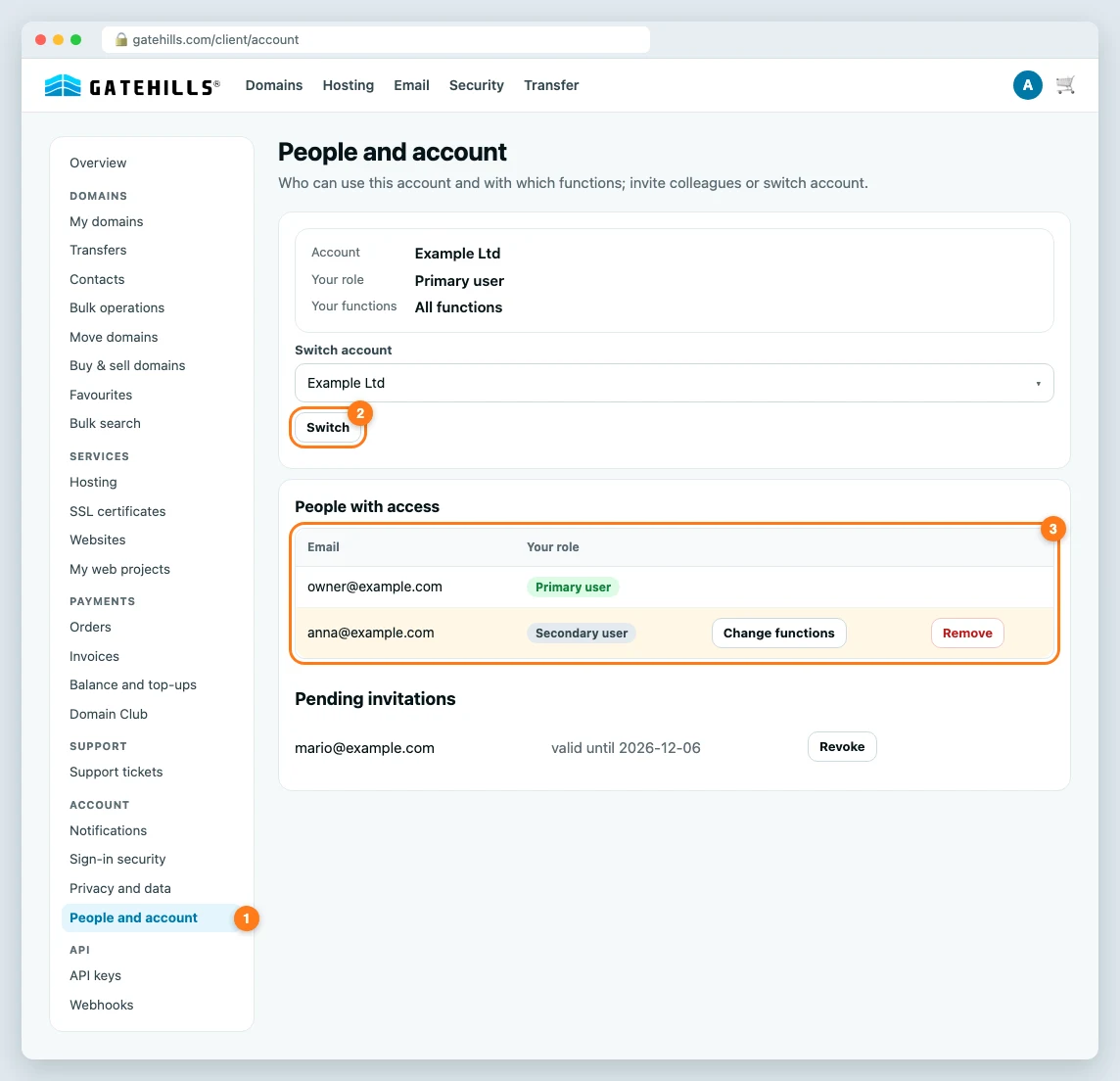
Sign in to the client area and click “People and account” in the menu (1). At the top you see the account, “Your role” and “Your functions”.
- Write the email
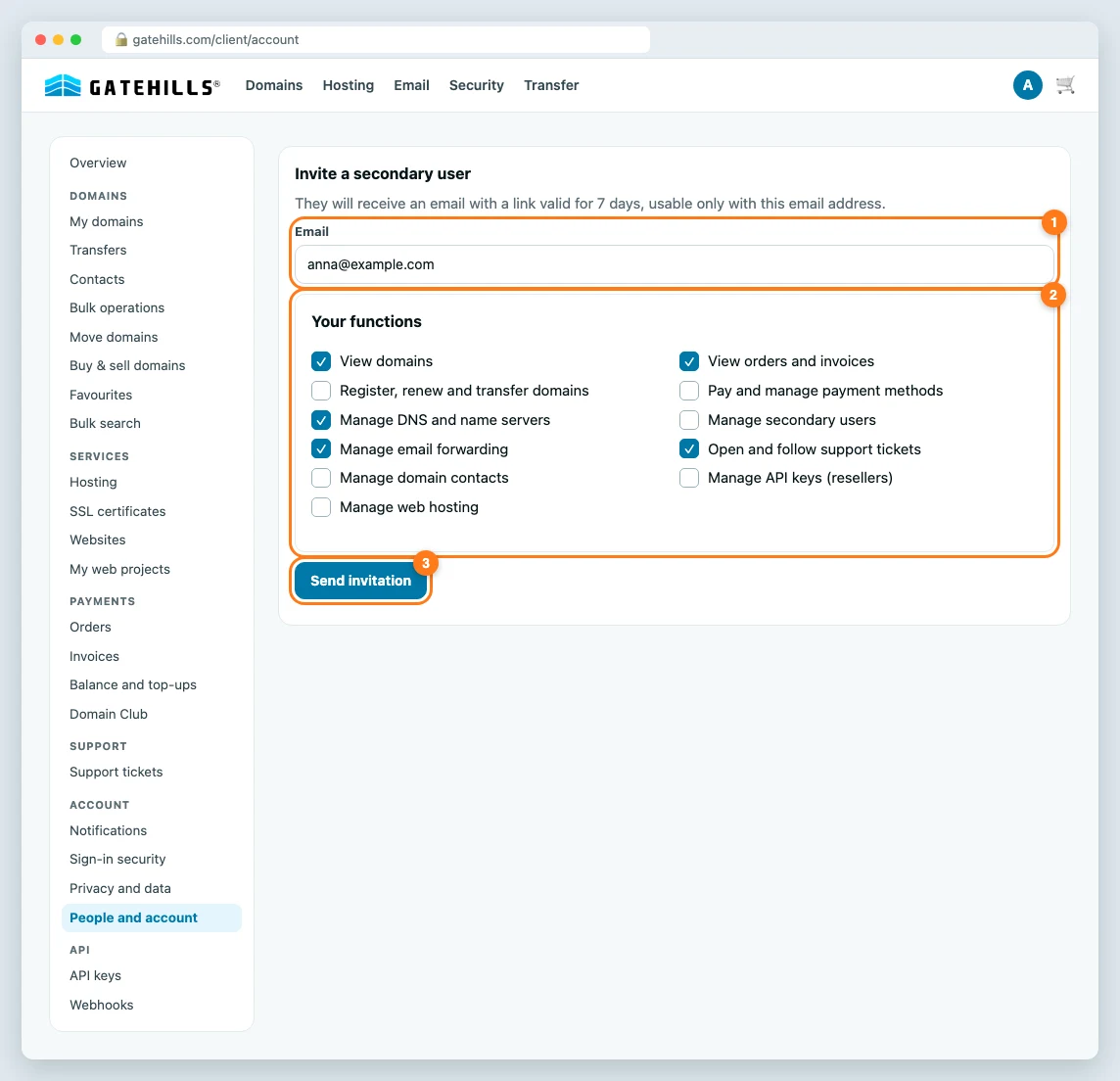
In the box “Invite a secondary user” write the person's “Email” (1 in the second picture). The invitation can be accepted only with this address.
- Choose the functions
Tick the functions the person needs (2), for example “View domains” and “Manage DNS and name servers” for a web designer, or “View orders and invoices” for an accountant. You can only delegate functions that you have yourself.
- Send the invitation
Click “Send invitation” (3). The person receives an email with a link valid for 7 days. Until they accept, the invitation is listed under “Pending invitations”, where you can “Revoke” it.
- The person accepts
The person opens the link and signs in with the invited email (or creates their access with it). They see You now have access to the account and the account appears in their client area.
Change functions or remove someone
In People with access (3), next to a secondary user, click Change functions, tick or untick the functions and click Save. To take away all access click Remove and confirm. You cannot change your own functions, and the primary user cannot be removed: they stay for the whole life of the account. A secondary user who wants to leave an account asks the primary user, or someone who manages the people, to remove them.
Switch between accounts
If you belong to more than one account (for example your own and your company's), choose the one to work on in the Active account menu at the top of the side menu, or with Switch account and Switch (2) on this page. Domains, orders and menu entries change with the account. If you are only a secondary user somewhere, Open your own account creates an account where you are the primary user.
| Function | What the person can do |
|---|---|
| View domains | See domains, DNS records and transfers |
| Register, renew and transfer domains | Buy, renew and transfer domains, auto-renewal and transfer lock |
| Manage DNS and name servers | Change DNS records, name servers, DNSSEC |
| Manage email forwarding | Create and change email forwarding |
| Manage domain contacts | Edit the contacts of the domains |
| View orders and invoices | See orders, invoices and balance |
| Pay and manage payment methods | Pay orders and manage saved cards |
| Manage secondary users | Invite people and change their functions |
There are also Open and follow support tickets, Manage web hosting and, for resellers and Domain Club members, Manage API keys (resellers). Menu entries a person cannot use are hidden for them.
Primary user and team members: what is the difference?
| Primary user | Secondary user | |
|---|---|---|
| How many per account | Exactly one | As many as you invite |
| Functions | All, always | Only the ones delegated |
| Can be removed | No, for the whole life of the account | Yes, with “Remove” |
| Can invite people | Yes | Only with “Manage secondary users” |
| Sign-in | Own email and password | Own email and password |
Give each person the smallest set of functions they need for their job. Security experts call this the principle of least privilege. It limits the damage if a password is stolen or a mistake is made.
How long is an invitation valid?
An invitation link is valid for 7 days. It works only for the invited email address. Until the person accepts, the invitation stays under Pending invitations, where you can Revoke it. If the link expires, send a new invitation: the old one cannot be extended.
Is there a limit to how many people I can invite?
The page does not set a fixed limit: invite the people who need access and remove those who no longer do.
Can a secondary user see my payment cards?
Only if you give them Pay and manage payment methods. With View orders and invoices alone they can see orders and invoices but not pay.
Can I make someone else the primary user?
Not from this page. To move domains to another person's account, use move domains between accounts, or contact support.
Does a secondary user receive notifications?
Yes, for what their functions let them see, for example renewals with the domain functions or invoices with the billing functions. See notifications.
How do I protect access for everyone?
Each person can turn on two-step verification and passkeys in Sign-in security. See sign-in security.
What happens to the API keys of a person I remove?
Keys created by that person stop working, because they act with the functions of whoever created them. Create new keys from a person who stays. See API keys.