
How the cart and checkout work
- To buy a domain, add it to the cart: the cart opens on the side, and you can reopen it with the cart icon at the top of the site.
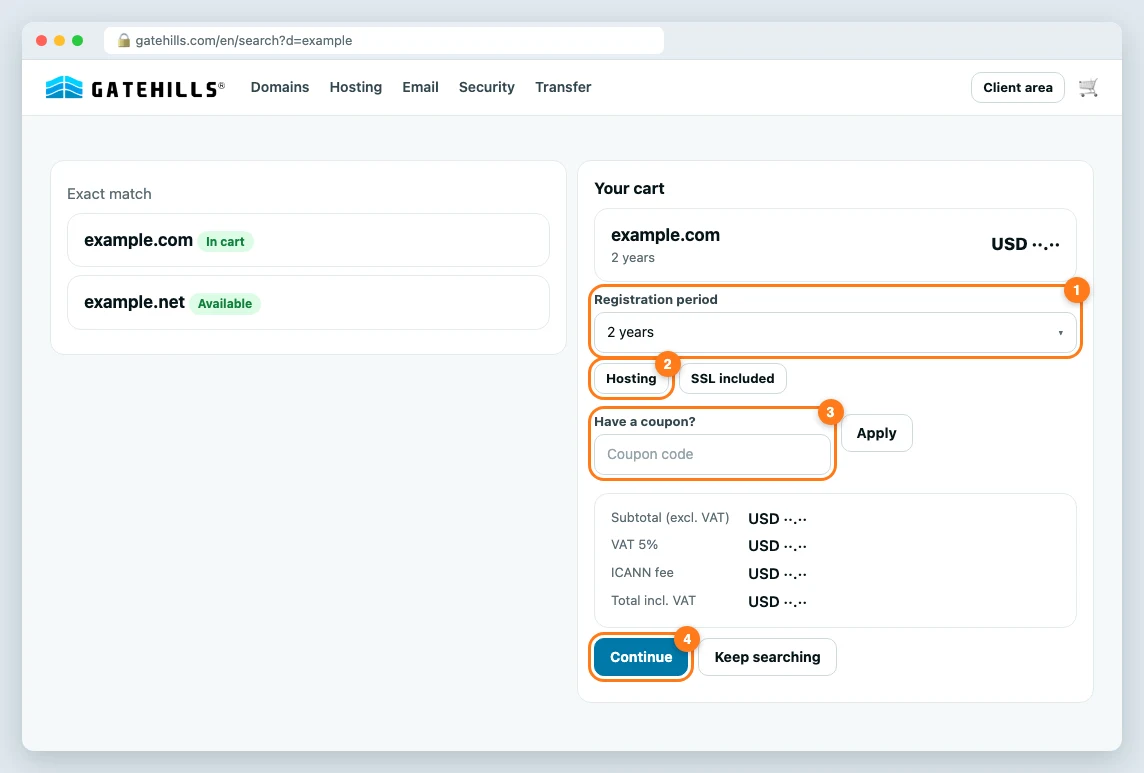
- In the cart you choose the registration period, add hosting or SSL and apply a coupon. VAT and the ICANN fee are shown.
- “Continue” takes you to checkout: sign in, “Step 1 of 2” (billing details and registrant), “Step 2 of 2” (review and pay).
- After payment the page shows the activation of each service live.
To buy a domain on Gatehills, add it to the cart and click Continue. Sign in, fill in your billing details and the domain registrant in Step 1 of 2, then review and pay by card or from your balance in Step 2 of 2. The confirmation page shows the activation of each item live.
Everything you choose on the site, domains, transfers, hosting, SSL or a website, goes into the same cart and is paid in one order. This guide follows the domain checkout from the cart to the confirmation page.
How do I buy a domain on Gatehills?
Check your cart
- Open the cart
The cart “Your cart” opens on the side every time you add a name. To open it again, click the cart icon at the top of the site. Remove a line with the × next to its price.
- Choose how many years
In “Registration period” (1) choose the number of years. Only the durations allowed by the extension are offered, each with its price. Some extensions must be registered for at least two years.
- Add extras
Under each domain you see the extras you can link to it (2), such as “Hosting”, “SSL”, “Site Builder” or “Web Design”. “SSL included” means a certificate comes with your choice at no cost. When products are grouped with the domain, the cart shows “Package” and “You save” with the amount.
- Apply a coupon
Click “Have a coupon?” (3), type the “Coupon code” and click “Apply”. The discount appears in the totals; “Remove” takes it away. One coupon per order.
- Check the total
Under the lines you see the subtotal, VAT, the “ICANN fee” for generic domains and the “Total incl. VAT”. In the cart VAT is estimated from the country you browse from; at checkout it follows the country of your billing details.
- Continue
Click “Continue” (4) to go to checkout, or “Keep searching” to close the cart and add more.
Checkout: billing details, review and payment
Complete the checkout
- Sign in
If you are not signed in, a window asks you to sign in to complete your purchase. Sign in, or create a free account, and you come back to checkout with your cart.
- Step 1 of 2: billing details
In “Billing details” choose “Who is buying”: “Individual” or “Company”. Fill in name, address, country, city, phone and email. Companies can add their tax ID; companies in the UAE fill in the “UAE electronic invoicing” box. If your details are already saved, the box shows “Completed”: open it only to change something.
- Choose the domain registrant
If you register domains, the “Domain registrant” box asks who will own them: one of your contacts, “Same as billing details” or a “New contact”. Some extensions, such as .ae or .uk, ask for extra information here. Then click “Continue”.
- Step 2 of 2: review
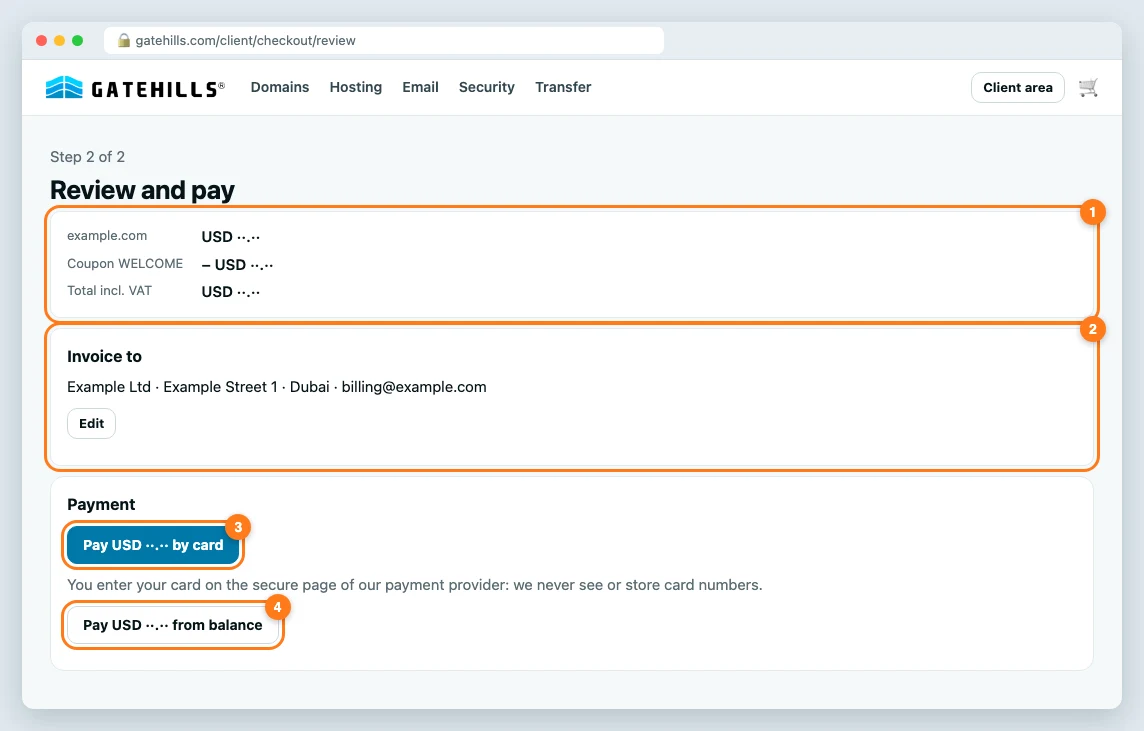
On “Review and pay” check the lines, the coupon and the total (1), and the “Invoice to” box (2). Click “Edit” to change your details. With monthly hosting you are asked to authorise the recurring payment and click “I agree”.
- Pay
Click “Pay … by card” (3): the card is entered with our payment provider and your bank may ask you to confirm. If your account balance covers the total you can also use “Pay … from balance” (4); if not, the “Top up” link is shown.
- Follow the activation
The page “Thank you, payment received!” shows the “Activation” of each item and updates by itself. You also receive an email when everything is ready. A transfer without a code shows “Transfer code needed”: click it to enter the code. Use “Order details and invoice” to see the order.
Bundles and cart reminders
- Bundles: in the site menu, Domains → Bundles offers ready-made packages at one price. Bundle discounts are applied automatically in the cart and shown as a separate line at checkout.
- Cart reminder: if you leave checkout without paying and you have agreed to receive our marketing emails, we may send you one reminder about a day later. Its link rebuilds your cart (registrations, transfers and broker requests) with today's prices. The email has an Unsubscribe link.
What does the total include?
| Line | What it is |
|---|---|
| Subtotal | The price of the items, for the years you chose |
| Coupon | One per order, applied to the price before VAT, never to the ICANN fee |
| Bundle discount | Applied automatically and shown as a separate line |
| VAT | Estimated from the country you browse from; at checkout it follows your billing country |
| ICANN fee | Generic domains only, at cost, without VAT and never discounted |
| Total incl. VAT | The amount you pay |
What happens after I pay?
The page Thank you, payment received! follows each item and updates by itself. A new registration is sent to the registry right after payment. You also receive an email when everything is ready.
A transfer takes longer: usually up to 5 days, because the current registrar can approve or refuse it. If a transfer code is missing, the page shows Transfer code needed. The invoice is on the order page, under Order details and invoice.
Which payment methods can I use?
Card, and the balance of your account when it covers the total. See pay by card and account balance.
Can I use more than one coupon?
No, one coupon per order. The discount applies to the price before VAT and never to the ICANN fee.
What is the ICANN fee?
A small yearly fee set by ICANN for generic domains such as .com. It is charged at cost, it is not subject to VAT and it is never discounted.
Can I change the registrant later?
Yes. The registrant is also used as administrative, technical and billing contact, and you can change the contacts later in the domain management. See domain contacts.
An activation did not go through. What now?
The confirmation page says so; you find the details on the order page. See orders.