
How to transfer a domain to Gatehills
- Domain transfer: at your current registrar, remove the transfer lock and get the authorisation code (EPP or auth code).
- Open “Transfer” → “Transfer a domain”, check eligibility, enter the code and add the domain to the cart.
- The price is shown for each domain; for most extensions it includes one year added to the current expiry.
- Follow the transfer in the client area under “Domains” → “Transfers”. It can take up to 5 days; your website and email keep working.
A domain transfer moves a domain you already own from another registrar to Gatehills. Remove the transfer lock, get the authorisation code, then open Transfer → Transfer a domain, check eligibility, enter the code and pay. It usually completes within 5 days, and your website and email keep working.
The domain stays yours and keeps its DNS. For most extensions the price adds one year to the current expiry. You can check up to 20 domains at a time and move a whole list in one order.
What is an authorisation code?
The authorisation code is a password for one domain, created by its current registrar. It proves that the owner agrees to the domain transfer. Registrars also call it "EPP code", "Auth code" or "Transfer code". For generic domains, the rules are set by the ICANN Transfer Policy.
The transfer lock is a separate setting: while it is on, the registry refuses every transfer request. Remove it at the current registrar before you start. Domains .uk work differently: there is no code, you ask the current registrar to change the IPS tag.
How do I start a domain transfer to Gatehills?
Transfer a domain to Gatehills
- Prepare the domain
In your current registrar's control panel, remove the transfer lock and copy the authorisation code, often called "EPP code", "Auth code" or "Transfer code". If you cannot find it, ask their support: they must give it to you within 5 days. For .uk domains no code is needed: you ask them to change the IPS tag to ours, shown on the page.
- Open the transfer page
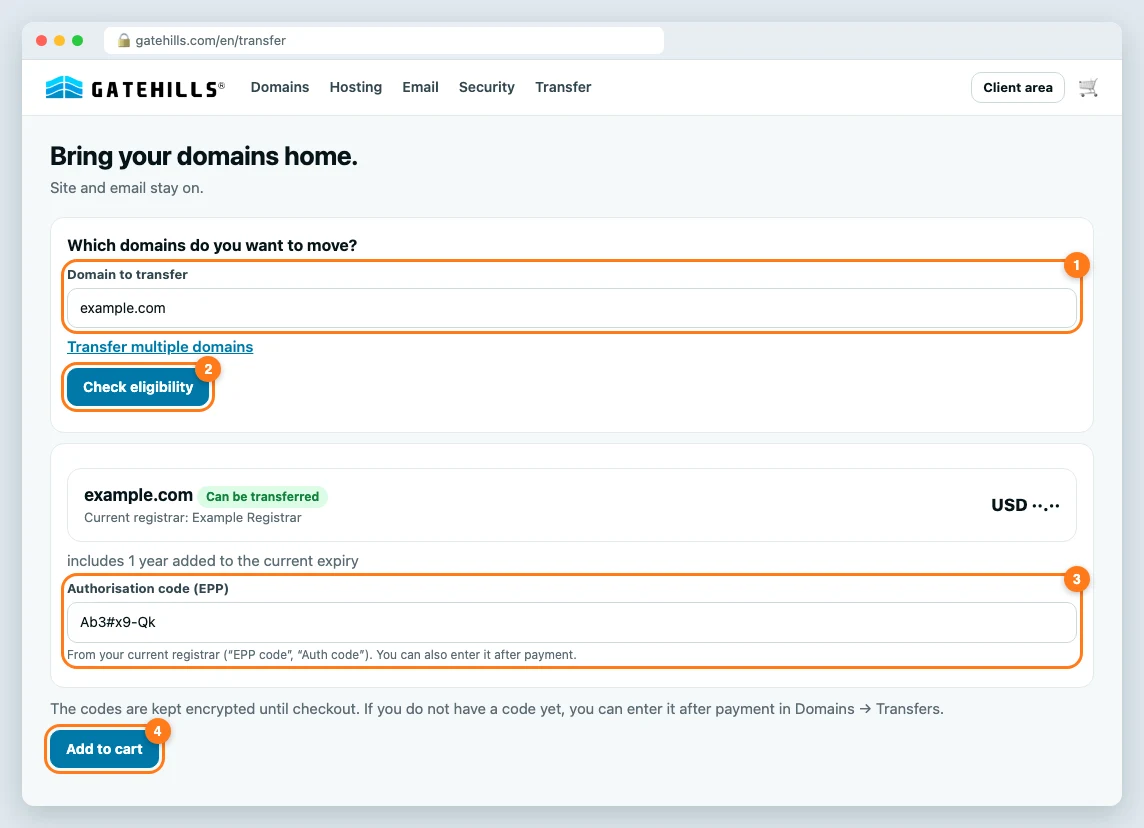
In the site menu choose “Transfer” → “Transfer a domain”, or click “Transfer to us” next to a registered name in the search. Write the name in “Domain to transfer” (1). To move several domains, click “Transfer multiple domains” and paste one per line; you can add the code after a space (“example.com CODE”).
- Check eligibility
Click “Check eligibility” (2). Each domain shows “Can be transferred”, “Check before you continue” or “Cannot be transferred now”, with the reason, the current registrar and the price. Under the price you read whether it “includes 1 year added to the current expiry” or the “expiry date does not change”.
- Enter the code
In “Authorisation code (EPP)” (3) paste the code. If you do not have it yet, leave it empty: you can enter it after payment. Codes are kept encrypted until checkout.
- Add to cart and pay
Click “Add to cart” (4) and complete the checkout. If a code is missing, the confirmation page shows “Transfer code needed”: open it, type the code in “Authorization code” and click “Start the transfer”.
- Follow the transfer
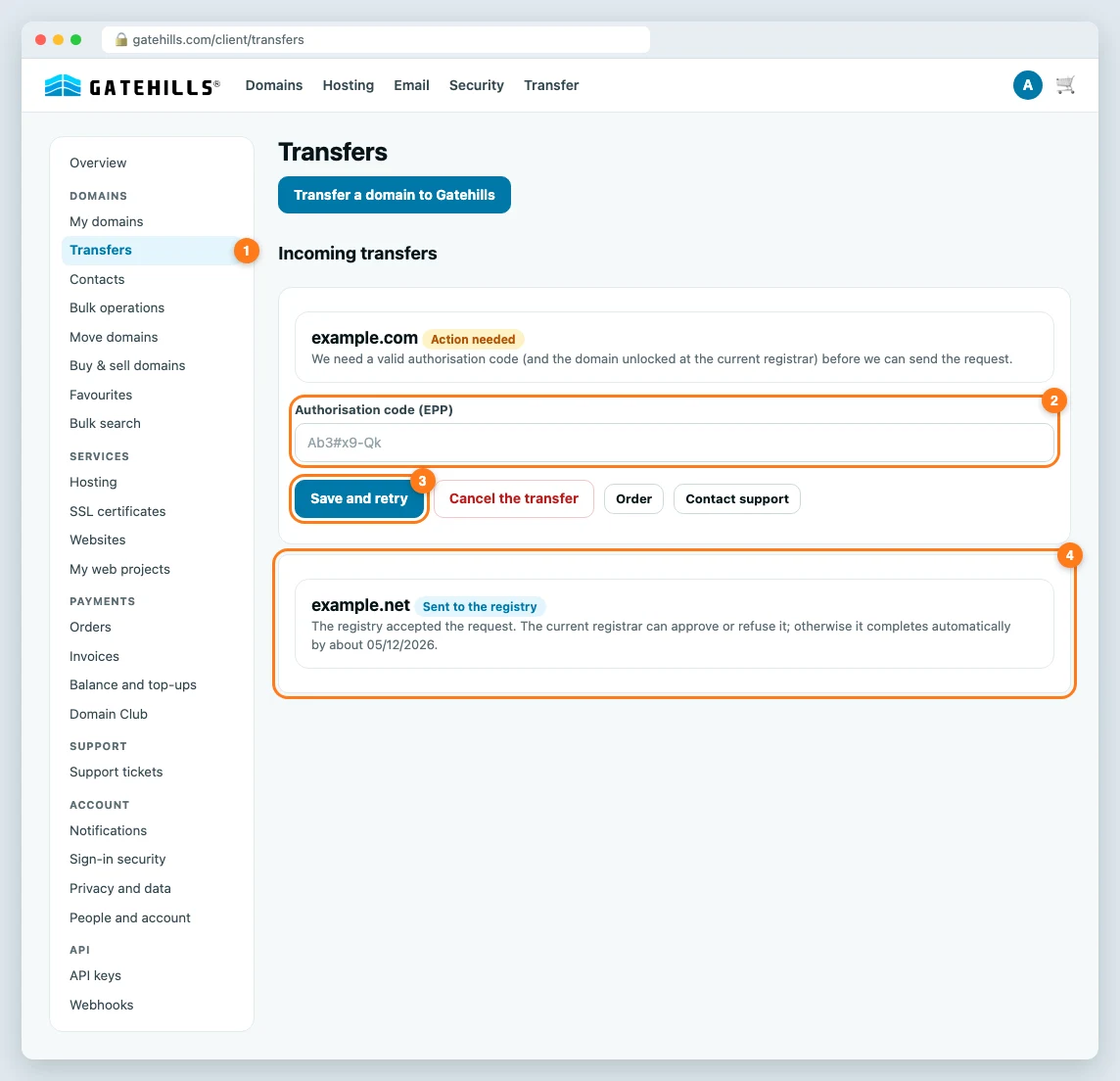
In the client area choose “Transfers” in the menu, under “Domains”. Under “Incoming transfers” each domain shows its status and what happens next. When it is “Completed”, the domain is in your account with the transfer lock on.
| Status | What it means | What to do |
|---|---|---|
| Action needed | We need a valid code, or the domain is still locked | Unlock it, enter the code and click Save and retry |
| Waiting to be sent | We have the code; the request leaves within minutes | Nothing |
| Waiting for the release | .uk: waiting for the IPS tag change | Ask the current registrar to change the tag |
| Sent to the registry | The current registrar can approve or refuse; otherwise it completes by itself | Wait (up to about 5 days) |
| Completed | The domain is in your account | Nothing |
| Refused / Cancelled / Failed | The transfer did not go through; the reason is shown | If you paid, the refund is proposed for approval |
| Being checked | Our staff is checking the outcome with the registry | Nothing for now |
Why can a domain not be transferred now?
| Reason | What to do |
|---|---|
| The transfer lock is on at the current registrar | Remove it in their control panel, then check again |
| The registry has blocked transfers (serverTransferProhibited) | Contact the current registrar |
| Registered or transferred less than 60 days ago | Wait until the date shown on the page |
| The domain is in redemption or about to be deleted | Restore it at the current registrar first |
| It expires within a few days | Consider renewing it first: near the expiry the current registrar can refuse |
| A transfer is already in progress | Wait for it to end |
| Premium name | The registry sets a higher transfer price, shown next to the domain |
How long does a transfer take?
Usually up to 5 days: the current registrar has that time to approve or refuse. Many transfers finish sooner. We email you when it is complete.
Will my website and email stop working?
No. The domain keeps its DNS during and after the transfer.
How much does it cost?
The price is shown for each domain after the check, and in the domain price list. For most generic extensions it includes one year added to the expiry; for some, such as .uk, the expiry does not change.
Can I cancel a transfer?
Yes, while it is still open: click Cancel the transfer in Transfers. If you paid, the refund is proposed to our staff for approval.
Is there anything special for .ae?
Ask your current registrar for the transfer code. The registrant details stay as they are. For .gov.ae, .ac.ae, .sch.ae and .mil.ae contact our support first.
Related guides