
How to install and manage WordPress on your Gatehills hosting
- WordPress hosting on Gatehills: install WordPress in one click on any active cPanel hosting, or buy a WordPress plan with WordPress already installed.
- You manage your sites in your account, under “WordPress”: one-click login, updates, automatic updates, security checks and backups.
- Up to 10 WordPress sites per hosting, on your main domain, on a subdomain or in a folder.
- The administrator password is shown only once: Gatehills does not store it.
With WordPress hosting on Gatehills you install WordPress in one click on your cPanel hosting and manage it from your account. You log in to the dashboard without a password, update WordPress, plugins and themes, apply security checks and take backups. The prices of the plans are shown on the WordPress page.
This guide is for anyone who wants a WordPress site without looking after a server. You need an active hosting account with Gatehills and the right to manage hosting in your account.
What is managed WordPress hosting?
WordPress is the free software that runs a large share of the world’s websites (see wordpress.org). Managed WordPress hosting means that the hosting company installs WordPress for you and gives you simple tools to keep it updated, safe and backed up.
On Gatehills these tools run on WP Toolkit, the WordPress manager of cPanel, on the server of your hosting. You do not need to open cPanel: everything is on the WordPress page of your account. The free AutoSSL certificate works for domains registered with Gatehills.
Install WordPress in one click
- Open the WordPress page
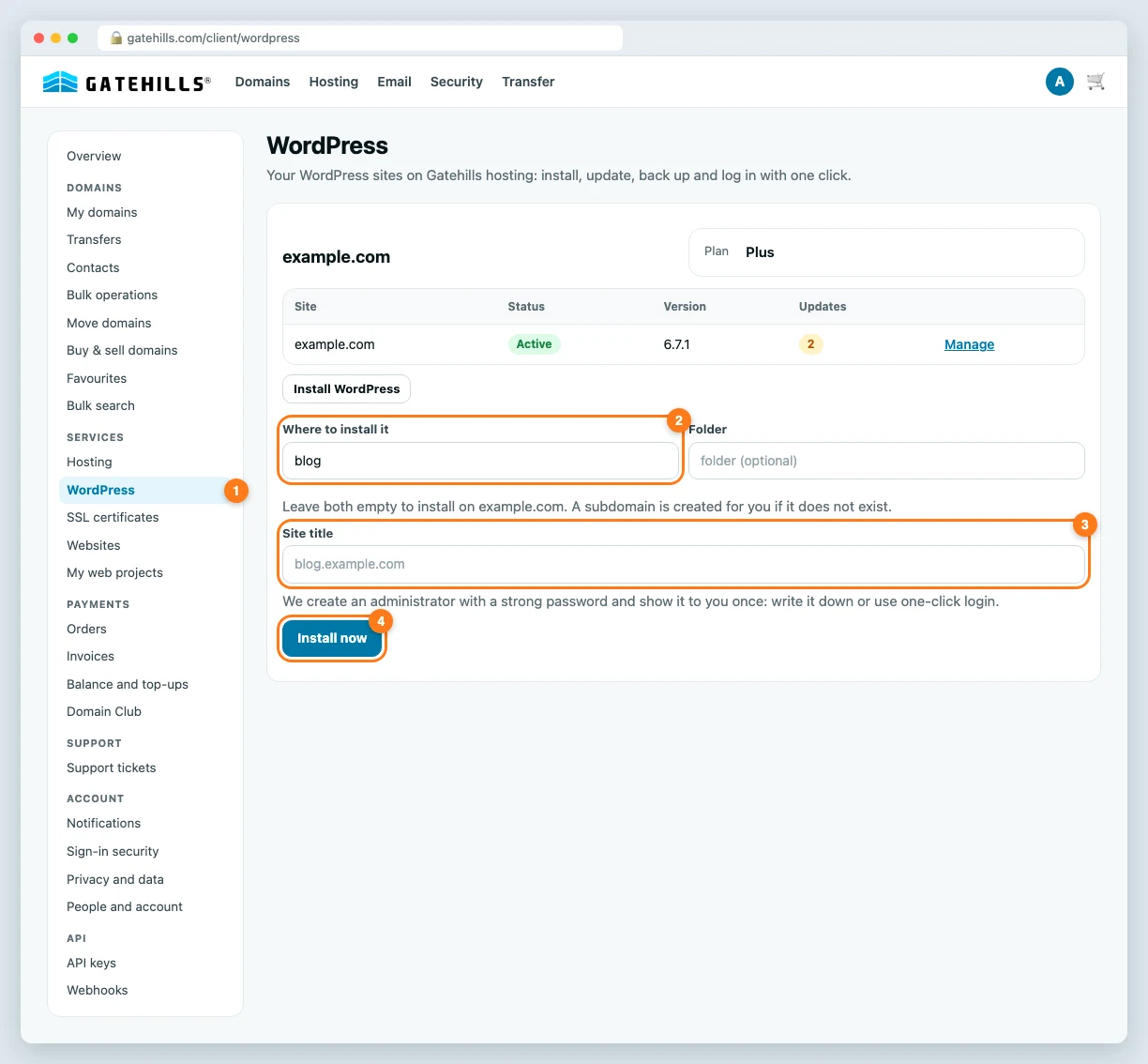
In your account choose “WordPress” in the menu (1). You can also click “WordPress” next to “Open cPanel” on the Hosting page. Each hosting account is listed with its plan and its WordPress sites.
- Open the form
Under the hosting you want, click “Install WordPress”. The hosting must be active.
- Choose where to install it
In “Where to install it” (2) write a subdomain, for example “blog”, and/or a folder. Leave both empty to install WordPress on the main domain.
- Give the site a title
Write the “Site title” (3), up to 120 characters. It is optional: you can change it later in WordPress.
- Start the installation
Click “Install now” (4). The installation takes a few minutes.
- Copy your login details
At the end the page shows the dashboard address (ending in /wp-admin/), the username and the password. Use “Copy” and keep them somewhere safe: they are shown only once.
Where can you install WordPress?
| Where | What to write | Example |
|---|---|---|
| Main domain | Leave subdomain and folder empty | example.com |
| Subdomain | Only the subdomain; it is created for you if it does not exist | blog.example.com |
| Folder | Only the folder: letters, digits, - and _, up to 3 levels | example.com/shop |
| Subdomain and folder | Both fields | blog.example.com/news |
Some subdomains are reserved for the hosting: www, mail, ftp, cpanel, webmail, autodiscover and every name that starts with staging. You can have up to 10 WordPress sites per hosting account.
What happens to the administrator password?
Gatehills creates an administrator with a username that starts with gh_ (never “admin”) and a strong password of 24 characters. The page shows them only once and Gatehills does not store the password.
If you lose it, you have two options. Click Log in to WordPress to enter the dashboard with one click. Or click New password on the site page: a new password is created and, again, shown only once.
Manage your WordPress site
Log in, update, secure and back up
- Open the site
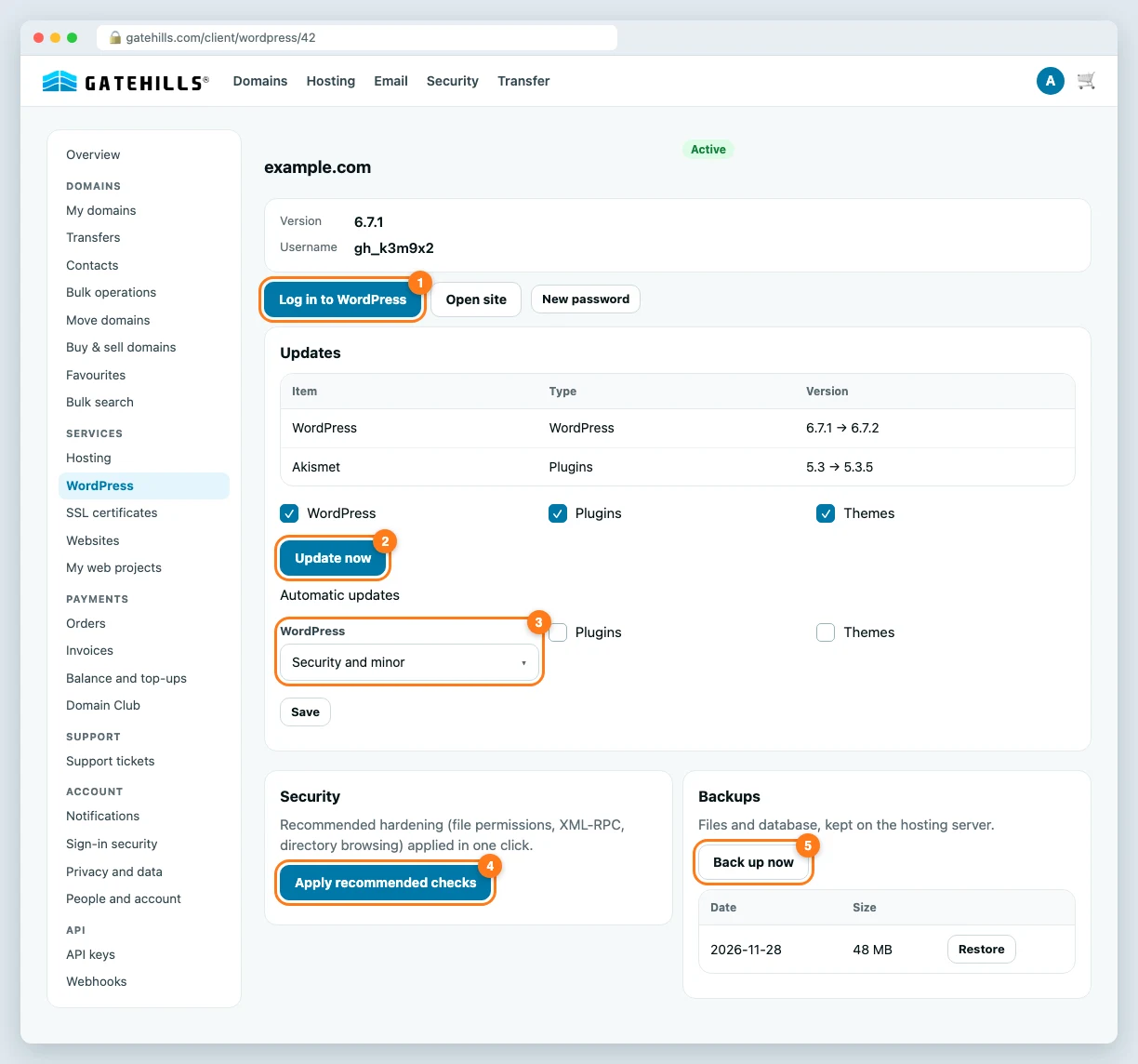
On the WordPress page click “Manage” next to the site. The page shows the WordPress version, the administrator username and when the status was last checked.
- Log in to the dashboard
Click “Log in to WordPress” (1): the dashboard opens in a new tab, with no password. “Open site” shows the site as visitors see it.
- Apply updates
Under “Updates” you see each item (WordPress, plugins, themes) with its current and new version. Tick “WordPress”, “Plugins” and “Themes” as you like and click “Update now” (2). If your site uses many plugins, take a backup first.
- Choose automatic updates
Under “Automatic updates” (3) choose for WordPress “Off”, “Security and minor” (the default) or “All versions”. Tick “Plugins” and “Themes” to update them automatically too, then click “Save”.
- Apply the security checks
Under “Security” you see the checks recommended by WP Toolkit: file and folder permissions, blocking xmlrpc.php, no directory browsing. Click “Apply recommended checks” (4).
- Take a backup
Under “Backups” click “Back up now” (5). Files and database are kept on the hosting server. Each backup has a “Restore” button: it asks for confirmation and replaces the current site.
Can I test changes on a staging copy?
Only where the server of your hosting has WP Toolkit Deluxe. There, Create staging copy puts a copy of the site on staging. followed by your domain. Try your changes there, then open the copy and click Publish to live site. Before publishing, Gatehills takes a backup of the live site.
Where WP Toolkit Deluxe is not available, the page says that staging copies are not available on this server yet.
WordPress plans: hosting with WordPress already installed
On the public WordPress page you can buy a WordPress plan. It is a hosting plan where WordPress is installed automatically on the main domain as soon as the hosting is active, in a few minutes. Automatic updates of WordPress, plugins and themes are on.
You buy it from the cart like the other hosting plans, monthly or yearly. Renewals and expiry work like the cPanel hosting. With a WordPress plan the password is not shown: log in with Log in to WordPress and set your own password with New password.
How do I remove a WordPress site?
At the bottom of the site page, under Remove this WordPress site, type the site address to confirm and click Remove site. Files and database are deleted from the server and this cannot be undone. If the site has a staging copy, remove the staging copy first.
If the hosting expires or is suspended, the actions on its WordPress sites stop until you renew. If the hosting is removed, its WordPress sites are removed too.
Do I need to install WordPress myself?
With a WordPress plan, no: WordPress is installed on your main domain as soon as the hosting is active. On any other hosting plan you install it in one click from the WordPress page.
How many WordPress sites can I have?
Up to 10 per hosting account, on the main domain, on subdomains or in folders.
Who can manage WordPress in my account?
People with the right to manage hosting. See team members.
Is SSL included?
The free AutoSSL certificate covers domains registered with Gatehills. See free SSL certificates.
Can I update everything automatically?
Yes. Under Automatic updates choose All versions for WordPress and tick Plugins and Themes.
Related guides