
How to create your website with the Website Builder
- The Gatehills website builder creates a one-page website for your business from ready-made templates, with no code.
- You find it in the client area, “Services” → “Websites”.
- You can build and preview the site for free. To publish it you need a package (price shown on the page) and a domain registered with Gatehills.
- The Medium and Premium packages include AI that writes your texts and creates a logo.
A website builder is a tool that lets you create a site without writing code. With the Gatehills website builder you pick a template, add your texts and pictures and publish a one-page website on your domain. Building and previewing are free; to publish you buy a package and use a domain registered with Gatehills.
Choose a template for your sector, add your logo, photos and texts, and publish the site on your domain. HTTPS is free and automatic. You can change template, colours and content at any time: visitors see the changes only when you publish them.
Create and publish your website
- Start a new site
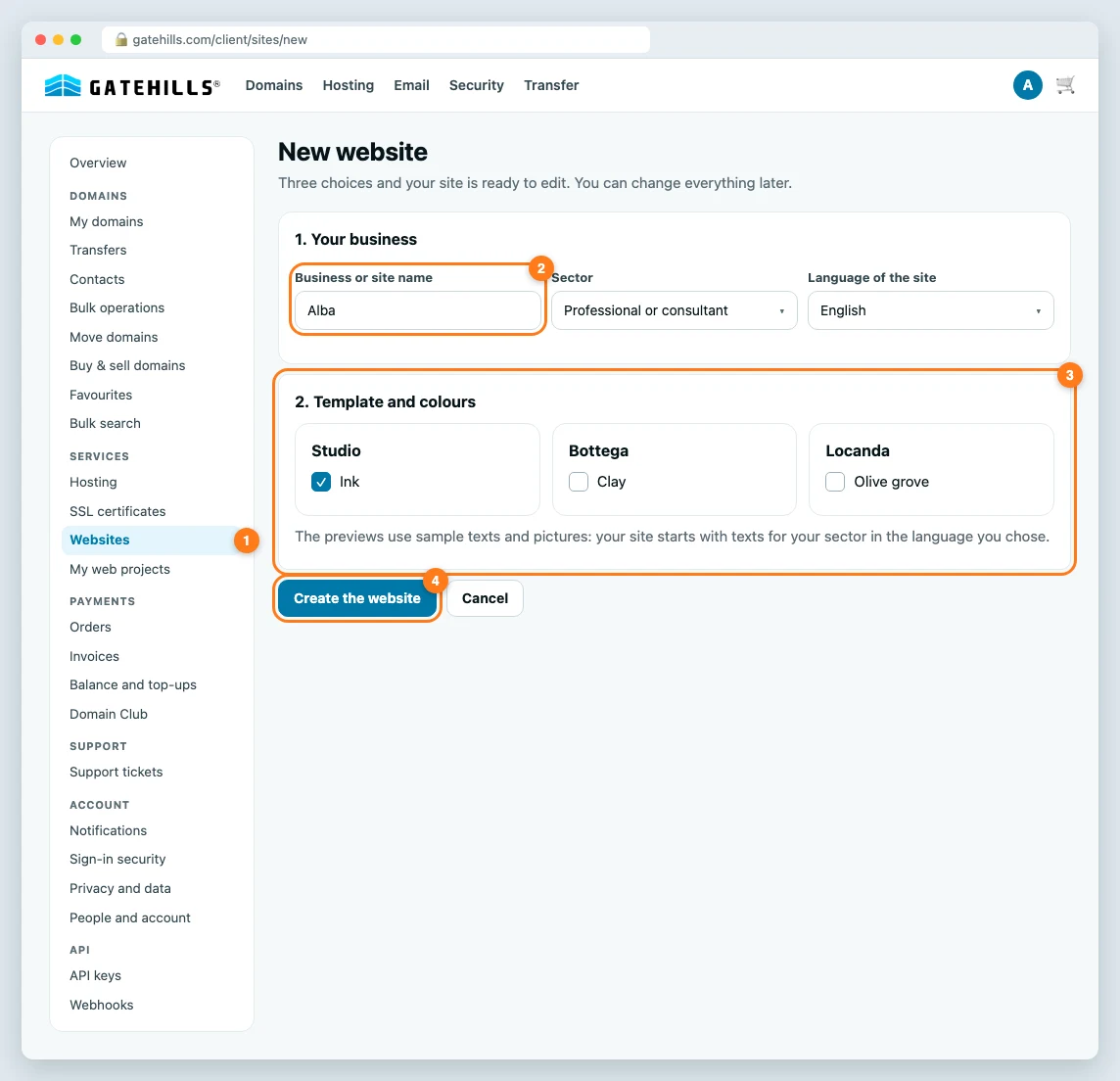
In the client area choose “Websites” in the menu (1) and click “Create a website”.
- Describe your business
Under “Your business” write the “Business or site name” (2), choose the “Sector” and the “Language of the site”. The site starts with sample texts for your sector in that language.
- Choose template and colours
Under “Template and colours” (3) pick a template and one of its colour palettes. You can change both later in “Design”. Click “Create the website” (4).
- Edit the content
In the editor open each section with “Edit content”, change texts and pictures and save. Use the arrows to reorder sections, “Hide” to hide one, “Add a section” to add more. Upload your logo and photos in “Logo and pictures”. The “Preview” on the right shows the site on a computer or a phone.
- Buy a package
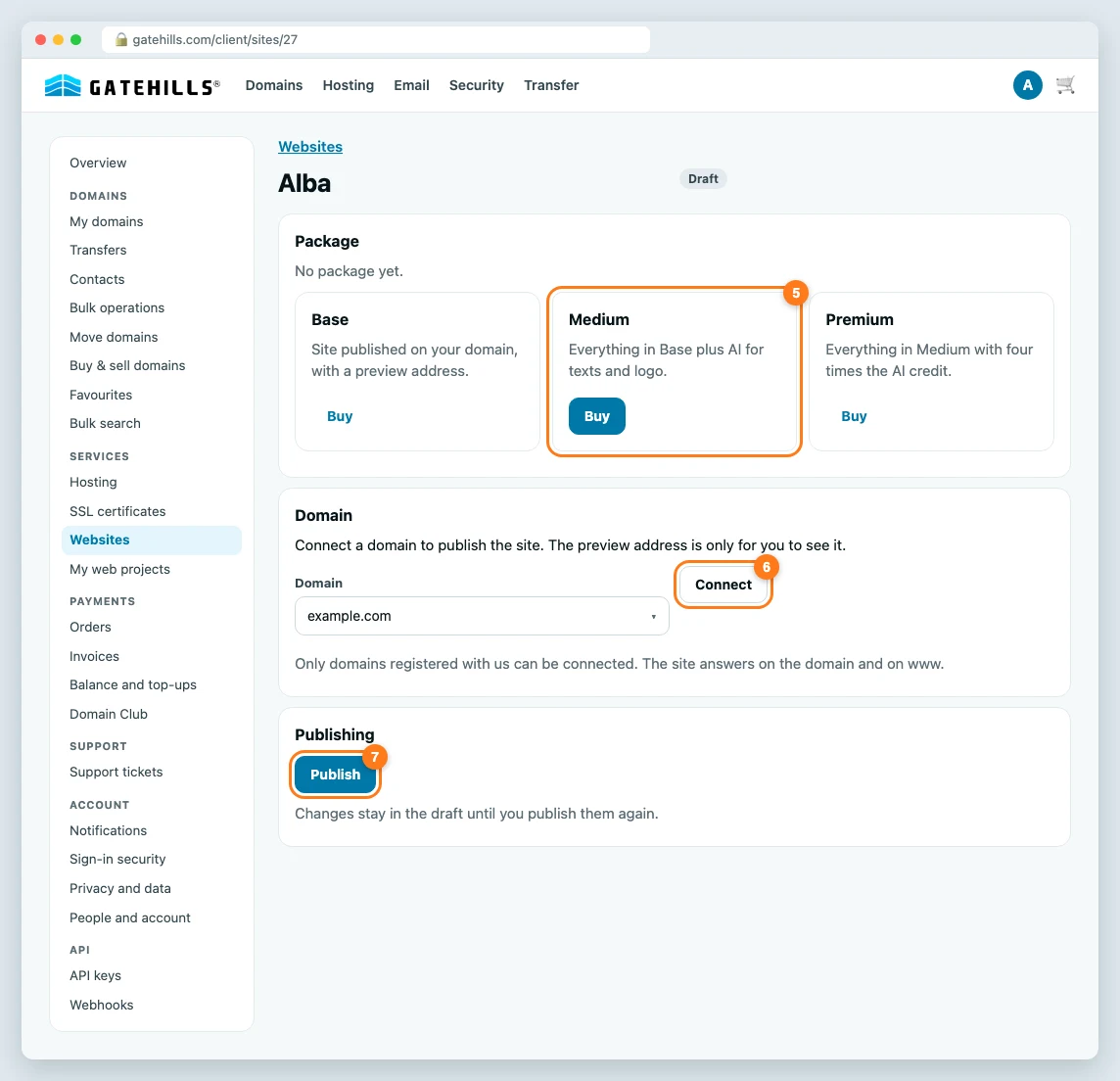
In the “Package” box (5) click “Buy” on Base, Medium or Premium and complete the checkout. The yearly price is shown next to each package.
- Connect your domain
In the “Domain” box choose a domain of your account and click “Connect” (6). If the domain uses our DNS we set the records for you; otherwise the page shows the records to set at your DNS provider.
- Publish
Click “Publish” (7). The status becomes “Online”. After later changes click “Publish changes”: until then visitors keep seeing the previous version.
Which package do I need?
You need a package only to publish. The yearly price of each package is shown in the Package box of the editor. All packages need a domain registered with Gatehills, and HTTPS is always included.
| Package | What it includes |
|---|---|
| Base | Site published on your domain, with a preview address. |
| Medium | Everything in Base plus AI for texts and logo. |
| Premium | Everything in Medium with four times the AI credit. |
What else can I set in the website builder?
- Let the AI write your site (Medium and Premium): describe your business in a few words and click Write all the texts. Pictures, prices, contacts and links stay as they are. Each request uses part of the AI credit; when it runs out you can buy a top-up.
- Create logo: in Logo and pictures the AI creates a logo in the style you choose.
- Site icon (favicon): upload a square PNG, SVG or ICO image, or keep the icon made from your logo.
- Search engines and contacts: page title (up to 70 characters), description (up to 170) and the address that receives the contact form messages.
- Design: change name, language, template, colours and fonts, then click Save.
- Take offline hides the published site; you can publish it again at any time.
How do I get my site found on Google?
Open Search engines and contacts and write a page title and a description that say what you do and where. Use the words your customers would search for. The site is served over HTTPS, which search engines expect.
For more tips, read the Google SEO starter guide. New sites can take some days to appear in search results.
What do the website statuses mean?
| Status | What it means |
|---|---|
| Draft | The site exists only in the editor. Visitors cannot see it yet. |
| Online | The site is published on your domain. |
| Expired, still online | The package has expired. The site stays online until the date shown, then goes offline. |
| Offline | The site is not visible. You took it offline or the package ended. |
| Suspended | Our staff has suspended the site. Contact support to know why. |
Can I try it before paying?
Yes. You can create the site, edit it and see the preview for free. You pay only when you want to publish it.
How many websites can I create?
The limit per account, drafts included, is shown at the bottom of the Websites page.
What happens when the package expires?
The status becomes Expired, still online and the page shows the date the site goes offline. Renew the package from the Package box, or turn on automatic renewal from your balance.
Can I use a domain registered elsewhere?
The Website Builder works with domains registered at Gatehills. Transfer your domain to us, then connect it.
Do I need an SSL certificate?
No. HTTPS is free and automatic: the certificate is issued on the first visit once the records point to us.
I want a site made for me. Is that possible?
Yes, with our web design service our team designs and builds a custom site for you.
Related guides