
How to connect a service to your domain with Domain Connect
- With Domain Connect, a service you use (website builder, email, online shop) sets up the DNS of your domain for you, with your consent.
- You start on the service’s website; Gatehills shows you every change and nothing happens until you confirm.
- You see the history in “My domains” → your domain → “DNS records” → “Connected services”, where you can undo the last setup.
- It needs the Gatehills name servers and the DNS function on your account.
Domain Connect lets a service such as Microsoft 365 or Google Workspace set up the DNS of your domain on Gatehills after you agree. You see every record first, nothing changes until you click Confirm the changes, and you can undo the last setup in Connected services. It is free.
Many online services offer a Connect your domain button. If the service supports Domain Connect, it sends you to Gatehills with the list of DNS records it needs. You do not copy any value by hand: you check the changes, confirm, and you are taken back to the service. Gatehills keeps a history of each connection so you can undo it later.
What is Domain Connect?
Domain Connect is an open standard that lets a service and a DNS provider work together. The service describes the records it needs in a template. The DNS provider, here Gatehills, applies that template to your zone after your consent. The specification is public at domainconnect.org.
Services find Gatehills through a TXT record named _domainconnect at the top of your zone. Gatehills adds this record automatically and locks it, so you do not need to create it. Templates are never downloaded from the service: Gatehills applies only templates it has reviewed and stored itself.
Connect a service
- Start on the service’s website
In the service you want to use, choose the option to connect your domain and enter your domain name, for example “example.com”. If it supports Domain Connect, you are sent to Gatehills.
- Sign in
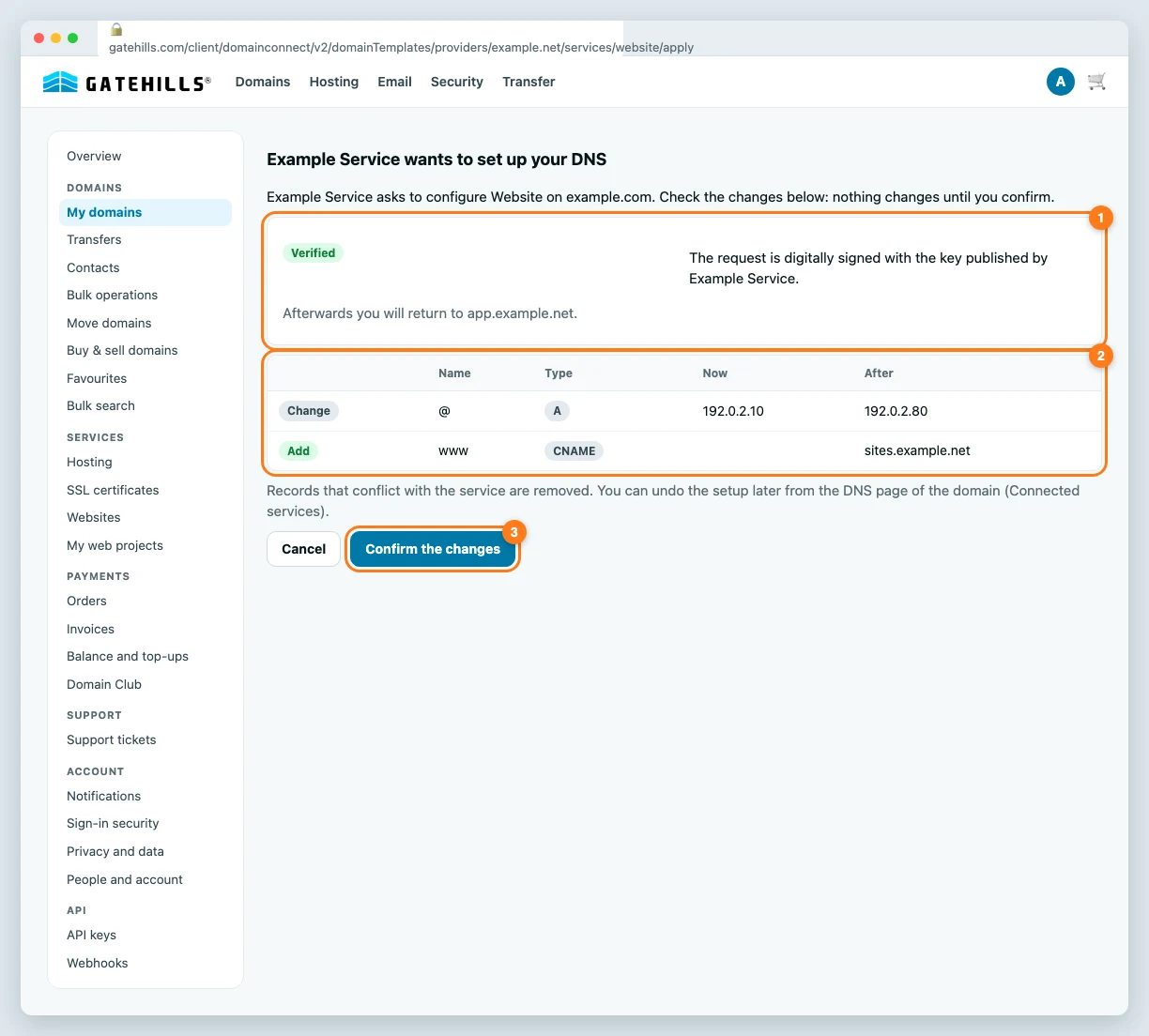
Sign in to the Gatehills client area if you are not signed in yet. The page “… wants to set up your DNS” opens for the account that manages the domain.
- Check who is asking
Look at the box at the top (1). “Verified” means the request is digitally signed with the key published by the service. “Not signed” means we cannot confirm who sent it. Confirm only if you started this setup yourself on the service’s website.
- Check the changes
The table (2) lists each record with “Add”, “Change” or “Remove” and the values “Now” and “After”. Records that conflict with the service are removed; warnings appear below the table.
- Confirm
Click “Confirm the changes” (3), or “Cancel” to leave your DNS untouched. If the records are already in place the button is “Continue”.
- Return to the service
The records are published on our name servers within a few minutes. Click “Return to the service” or close the window, as the page suggests.
What do “Verified” and “Not signed” mean?
| Status | What it means | What to do |
|---|---|---|
| Verified | The request is signed with the key the service publishes, and the signature matches | Confirm if you started the setup yourself |
| Not signed | The service did not sign the request, so Gatehills cannot confirm who sent it | Confirm only if you have just started the setup on the service’s website |
After you confirm or cancel, Gatehills sends you back to the service only at a secure https:// address allowed by its template. An unsigned request cannot send you to an address outside the service’s own domains.
How long until a Domain Connect setup works?
The records are written in one step and published on the Gatehills name servers within a few minutes. The service may take longer to see them, because other networks can keep old values until their TTL expires, usually within an hour. If the service still says the domain is not connected, wait a little and ask it to check again.
See the connected services and undo a setup
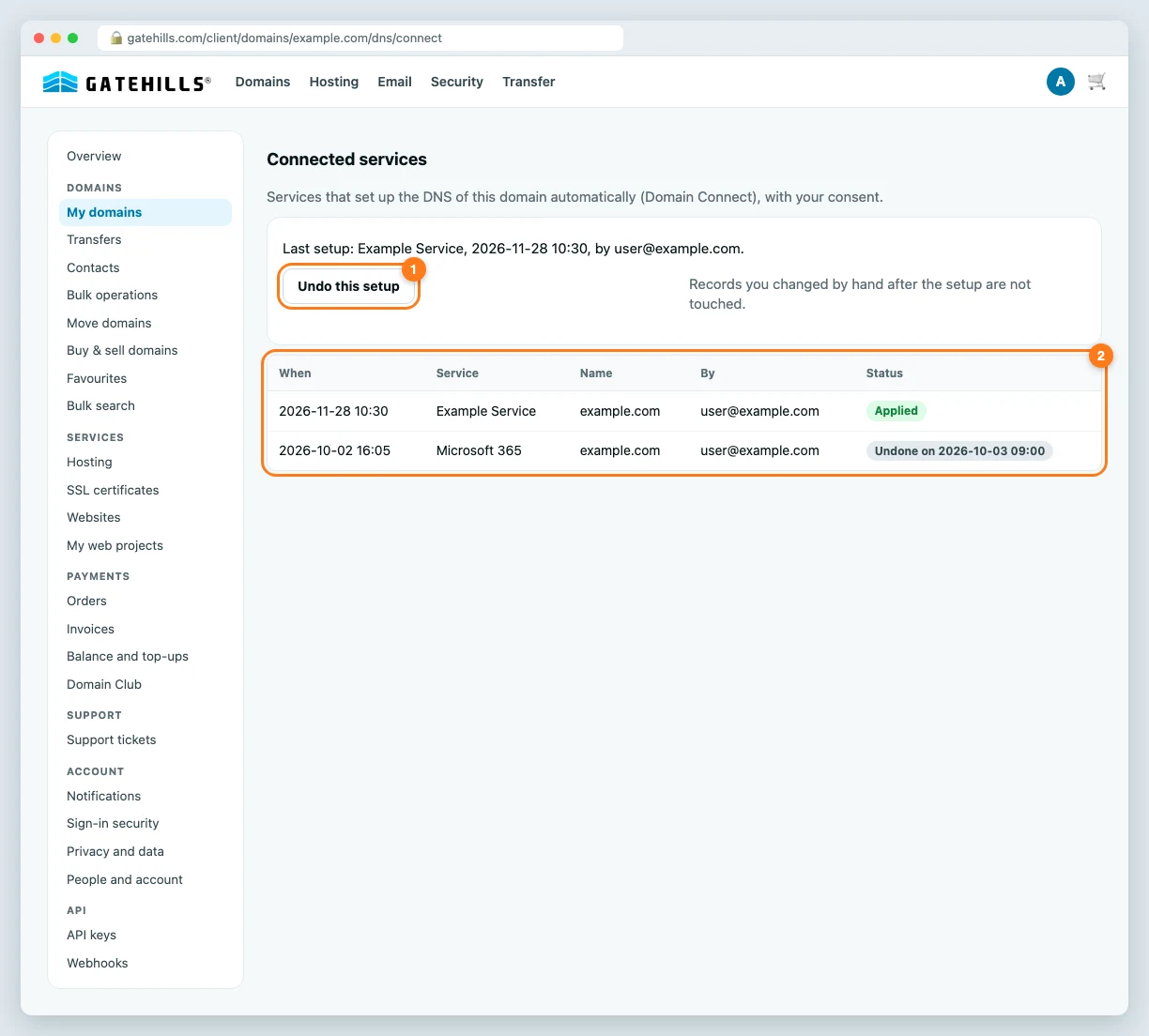
Open your domain, go to the DNS records tab and, in the Connected services box, click Show. The table lists every automatic setup with When, Service, Name, By and Status (Applied or Undone on …).
To remove the last setup, click Undo this setup (1) and confirm: the records go back to how they were before. Records you changed by hand afterwards are not touched. After an undo, the previous setup becomes the last one and can be undone too.
Which services support Domain Connect?
The standard is used by many website builders, email and productivity services. On Gatehills a service works when its template is among those Gatehills has reviewed: today Microsoft 365 and Google (Gmail setup and domain verification). If a service is not supported, the page says so: add the records by hand in DNS records.
Is it safe?
Nothing changes until you confirm, and you see every record first. Signed requests are checked against the key published by the service. You can undo the setup at any time.
Will it affect my email?
Only if the service changes MX records. In that case the table shows it, and if Gatehills email forwarding is active the page warns you that it will be turned off.
Does Domain Connect cost anything?
No, it is part of the free Gatehills DNS. The connected service may have its own price.
What is the difference with Set up email?
Set up email is our own one-click setup for Google Workspace and Microsoft 365, started from Gatehills. Domain Connect is started by the other service. See email with Google or Microsoft.