
How to set up email forwarding with your domain
- Email forwarding delivers messages sent to addresses at your domain to mailboxes you already use, such as Gmail or Outlook.
- You set it up in “My domains” → your domain → “Email”. It is free with your domain.
- Each alias forwards to one or more addresses; “*” catches all other addresses. The page shows how many aliases you can still add.
- It needs the Gatehills DNS. No mailbox is created at Gatehills.
Email forwarding at Gatehills delivers messages sent to an address at your domain, such as info@example.com, to a mailbox you already use, for example Gmail or Outlook. It is free with your domain and needs the Gatehills DNS. You turn it on in My domains → your domain → Email, then add aliases.
What is email forwarding and what is an alias?
With forwarding you can give out a professional address such as info@example.com and read the messages in the mailbox you already have. It is ideal for small businesses and personal domains. If you need real mailboxes, use Google Workspace or Microsoft 365 instead.
An alias is the part of the address before the @, such as info or sales. Each alias sends its messages on to one or more recipients. The alias * is the catch-all: it receives mail for every address that has no alias of its own.
| Question | Forwarding at Gatehills | Google Workspace or Microsoft 365 |
|---|---|---|
| Price | Free with your domain | A subscription with Google or Microsoft |
| Mailbox | None: mail goes to addresses you already use | A real mailbox at your domain |
| DNS | Needs the Gatehills DNS; the records are added for you | You add the MX records of the provider |
| Good for | Small businesses and personal domains | Teams that need real mailboxes |
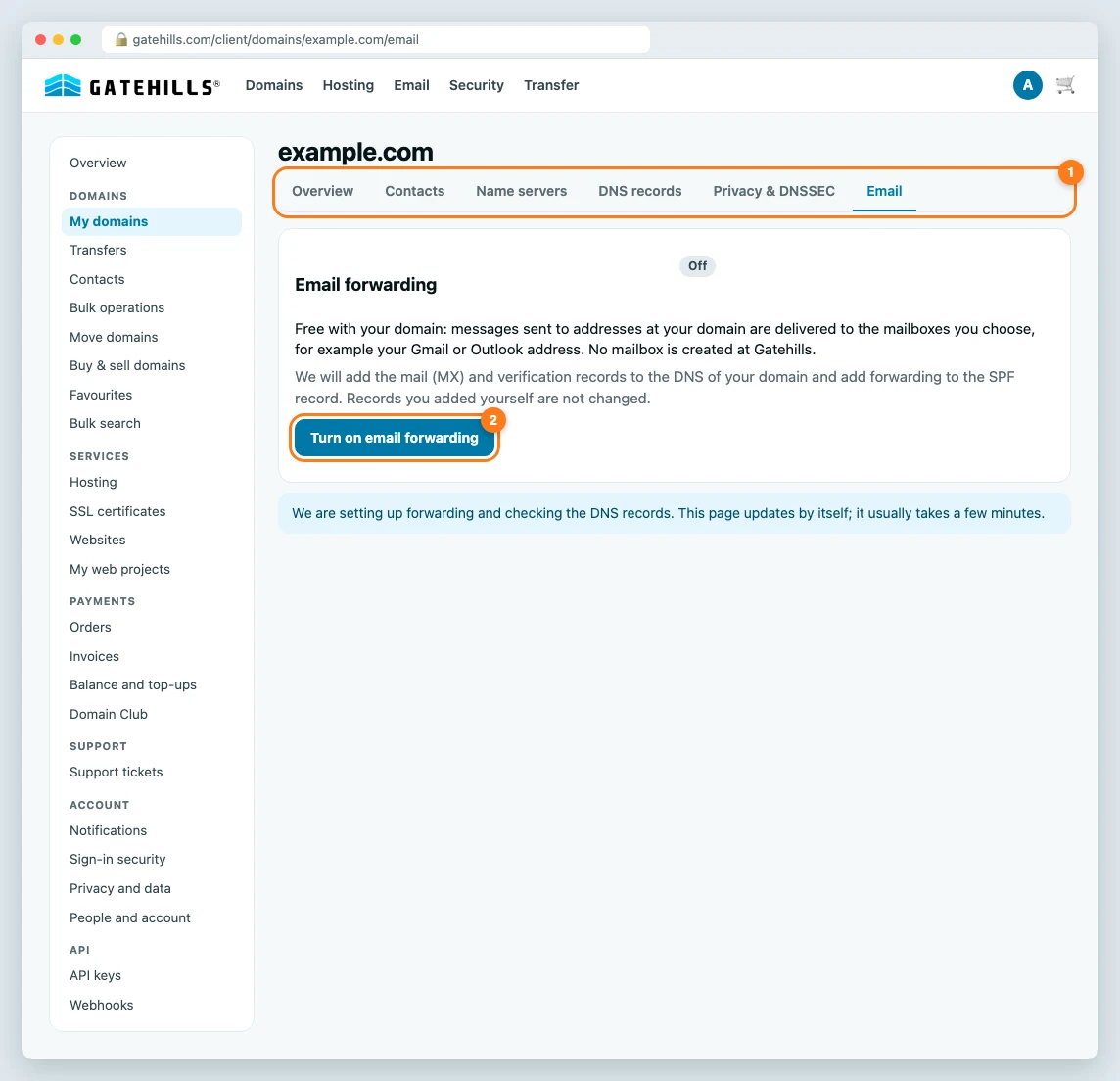
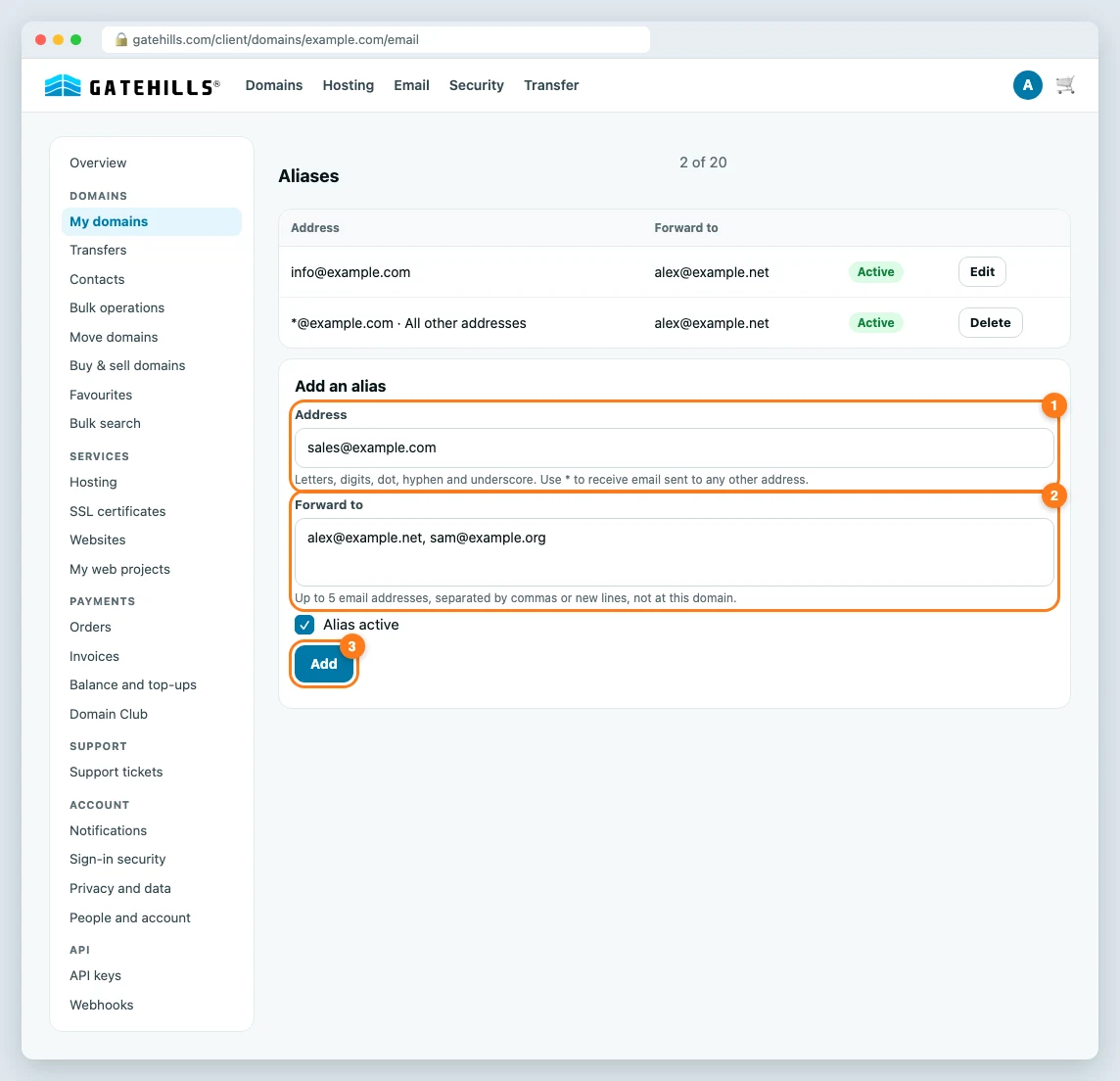
Turn on forwarding and add an alias
- Open the Email tab
Go to “My domains”, click the domain name and open the “Email” tab (1).
- Turn on forwarding
Click “Turn on email forwarding” (2). We add the mail (MX) and verification records to the DNS of your domain and add forwarding to the SPF record. Records you added yourself are not changed.
- Wait until it is Active
The status shows “Being set up” while we check the DNS records. The page updates by itself; it usually takes a few minutes. Then the status becomes “Active”.
- Write the address
In the “Add an alias” box, write in “Address” (1) the part before the @, for example “info” or “sales”. Use letters, digits, dot, hyphen and underscore. Write “*” to receive email sent to any other address.
- Choose where to forward
In “Forward to” (2) write one or more email addresses, separated by commas or new lines. They must not be at the same domain.
- Add the alias
Leave “Alias active” ticked and click “Add” (3). The alias appears in the “Aliases” list, first as “Updating” and then as “Active”.
Edit, pause or delete an alias
In the Aliases list click Edit next to an alias: you can change the recipients or untick Alias active to pause it (it shows Paused), then click Save. To remove an alias click Delete and confirm. Turn off forwarding at the bottom of the page deletes all aliases and puts back the default DNS records.
How long does it take to turn on forwarding?
Usually a few minutes. After Turn on email forwarding the status shows Being set up while Gatehills checks the DNS records. The page updates by itself, and the status then becomes Active.
Gatehills also adds forwarding to the SPF record of the domain. SPF tells receiving servers which servers may send mail for your domain; it is defined in RFC 7208.
Is email forwarding free?
Yes, it is included free with your domain.
How many aliases and recipients can I have?
The page shows how many aliases you are using out of the maximum for the domain, and the form says how many recipients each alias can have. When you reach the limit, the form is no longer shown.
What is the * alias?
It is the catch-all: it receives email sent to any address at your domain that has no alias of its own. It appears as All other addresses.
The status shows Problem. What should I do?
Forwarding is not working right now. We retry automatically and our team can see the problem; your aliases are kept. If it lasts, open a support ticket.
Can someone in my team manage forwarding?
Yes, if the primary user gives them the Manage email forwarding permission. Without it they can view the page but not change it. See people and account.
Related guides