
How to redirect your domain to another web address
- A domain redirect sends everyone who opens your domain, or one of its subdomains, to another web address.
- You set it up in “My domains” → your domain → “Redirects”.
- It is free, HTTPS works automatically, and you can have up to 10 redirects per domain.
- It needs the Gatehills name servers and an active domain without hosting.
On Gatehills you create a domain redirect in the Redirects tab of your domain: choose the name, paste the destination URL and pick 301 permanent or 302 temporary. Redirects are free, HTTPS is automatic and each domain can have up to 10 of them, one per name.
Use a redirect when you do not need a website on the domain itself: for example to send example.com to your social media page, to a shop on another platform, or to point an old domain to your new one. You choose the name (@ for the domain itself, www or another subdomain) and the full destination address. Names without a redirect show the Gatehills parking page.
What is a domain redirect?
A domain redirect is an instruction from a web server. When a browser asks for your domain, the server answers with a code (301 or 302) and the new address. The browser then opens that address, and search engines follow the same answer. The codes are defined in the HTTP standard, RFC 9110.
On Gatehills the redirect service does this for you. When you add a redirect, Gatehills points the name to the service with A records (and AAAA records where available) in your DNS zone. If the name already points somewhere else, you are asked to confirm before those records are replaced. When you delete the redirect, the records stay and the name shows the Gatehills parking page.
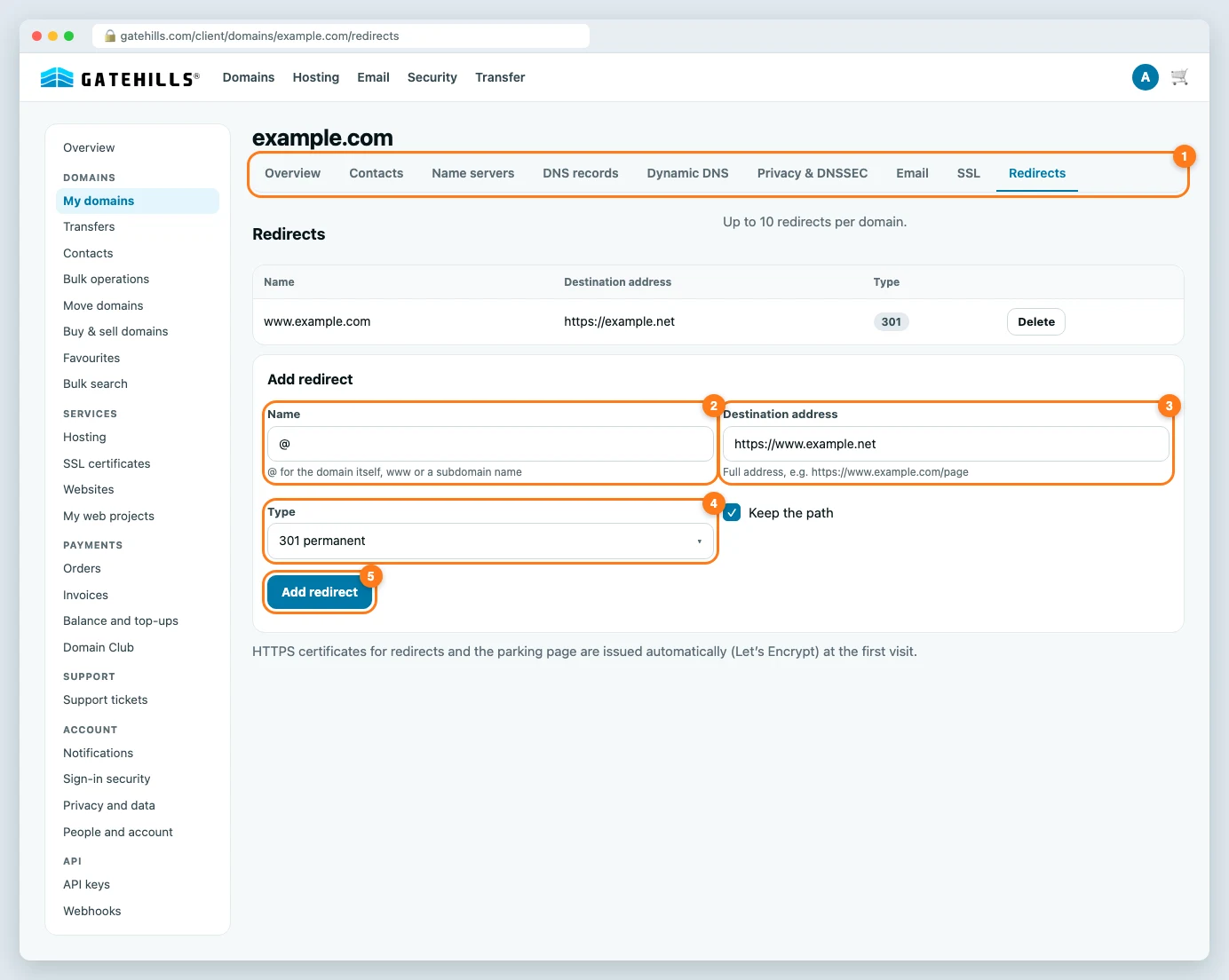
Add a redirect
- Open your domain
Sign in to the client area, choose “My domains” in the menu and click the domain name.
- Go to the Redirects tab
Click the “Redirects” tab (1). You see the redirects you already have and the “Add redirect” form.
- Write the name
In “Name” (2) write “@” for the domain itself, “www”, or only the subdomain part, for example “shop”. Do not write the full domain.
- Write the destination
In “Destination address” (3) paste the full address, starting with “https://” or “http://”, for example “https://www.example.net/page”.
- Choose the type
In “Type” (4) choose “301 permanent” if the move is final (search engines move the ranking to the new address) or “302 temporary” for a short-term change. Leave “Keep the path” ticked if “example.com/page?x=1” should open the same path on the destination.
- Save
Click “Add redirect” (5). The redirect appears in the list. If the name already has DNS records that point elsewhere, the page asks “Replace the current records?”: check the list and click “Replace and add the redirect” to continue, or “Cancel”.
301 or 302: which redirect should you choose?
| Question | 301 permanent | 302 temporary |
|---|---|---|
| When to use it | The move is final, for example an old domain or a new brand | A short-term change, for example a campaign or maintenance |
| Search engines | Move the ranking to the new address | Keep the original address in the results |
| Browsers | May remember it, so later changes can take time to show | Ask again at every visit |
| Default on Gatehills | Yes | No |
What does “Keep the path” do?
With Keep the path ticked, the part after the domain is added to the destination. A visit to example.com/a?b=1 with the destination https://www.example.net/shop opens https://www.example.net/shop/a?b=1. Untick it to send every page of the domain to exactly the same address, for example a single landing page.
How long does a domain redirect take to work?
The redirect is saved at once, and the DNS records are published on the Gatehills name servers within a few minutes. If the name pointed to another server before, some networks keep the old address until its TTL expires. With the default TTL of one hour, everyone sees the domain redirect within about an hour. The HTTPS certificate is created at the first visit, which may take a few seconds.
Delete a redirect
In the list, click Delete next to the redirect and confirm. The name then shows the Gatehills parking page again. A redirect marked Suspended by Gatehills cannot be changed: contact support to find out why.
HTTPS for redirects
You do not need to buy a certificate. The HTTPS certificate (Let’s Encrypt) for the redirect is issued automatically at the first visit, so both http:// and https:// addresses of your domain work. The very first visit may take a few seconds longer.
301 or 302: which one should I choose?
Choose 301 permanent when the domain has moved for good, for example to a new brand. Choose 302 temporary when the destination will change again soon, for example during a campaign.
Do redirects cost anything?
No, redirects are free for domains that use the Gatehills DNS, and HTTPS is included.
How many redirects can I have?
Up to 10 per domain, one per name. The limit is shown at the top of the list.
Why does the page say redirects are not available?
Redirects need an active domain on the Gatehills name servers. If the domain uses other name servers, switch them in the Name servers tab. If it has hosting, use the hosting control panel.
Can a team member add redirects?
Yes, if the primary user gives them the DNS function. Without it they can see the redirects but not change them. See people and account.