
How to create and manage API keys
- API keys let your own software (a billing system, a script, a control panel) manage domains, DNS and certificates through the Gatehills REST API.
- They are in the client area under “API keys”, for reseller accounts and Domain Club members.
- Each key has its scopes, an optional list of allowed IP addresses and a validity. Up to 10 active keys per account.
- Paid operations made with a key are charged to the prepaid balance of the account.
API keys let your own software use the Gatehills REST API without your password. You create them in the client area, choose what each key may do (its scopes), from which IP addresses it works and for how long, and you can revoke it at any moment. They are available to reseller accounts and Domain Club members.
A key is a secret token that a program sends with each request. Give each program its own key with only the scopes it needs: if a key leaks, you revoke it and the others keep working.
Who can use API keys
- Reseller accounts (enabled by Gatehills support) and client accounts with an active Domain Club membership. Members use the club prices of their tier.
- The person must have the Manage API keys (resellers) function on the account. The primary user has it automatically.
- When both conditions are met, the menu shows a group API (or Resellers for reseller accounts) with API keys and Webhooks.
- If the Domain Club membership is no longer active, existing keys are Suspended. They work again as soon as you renew.
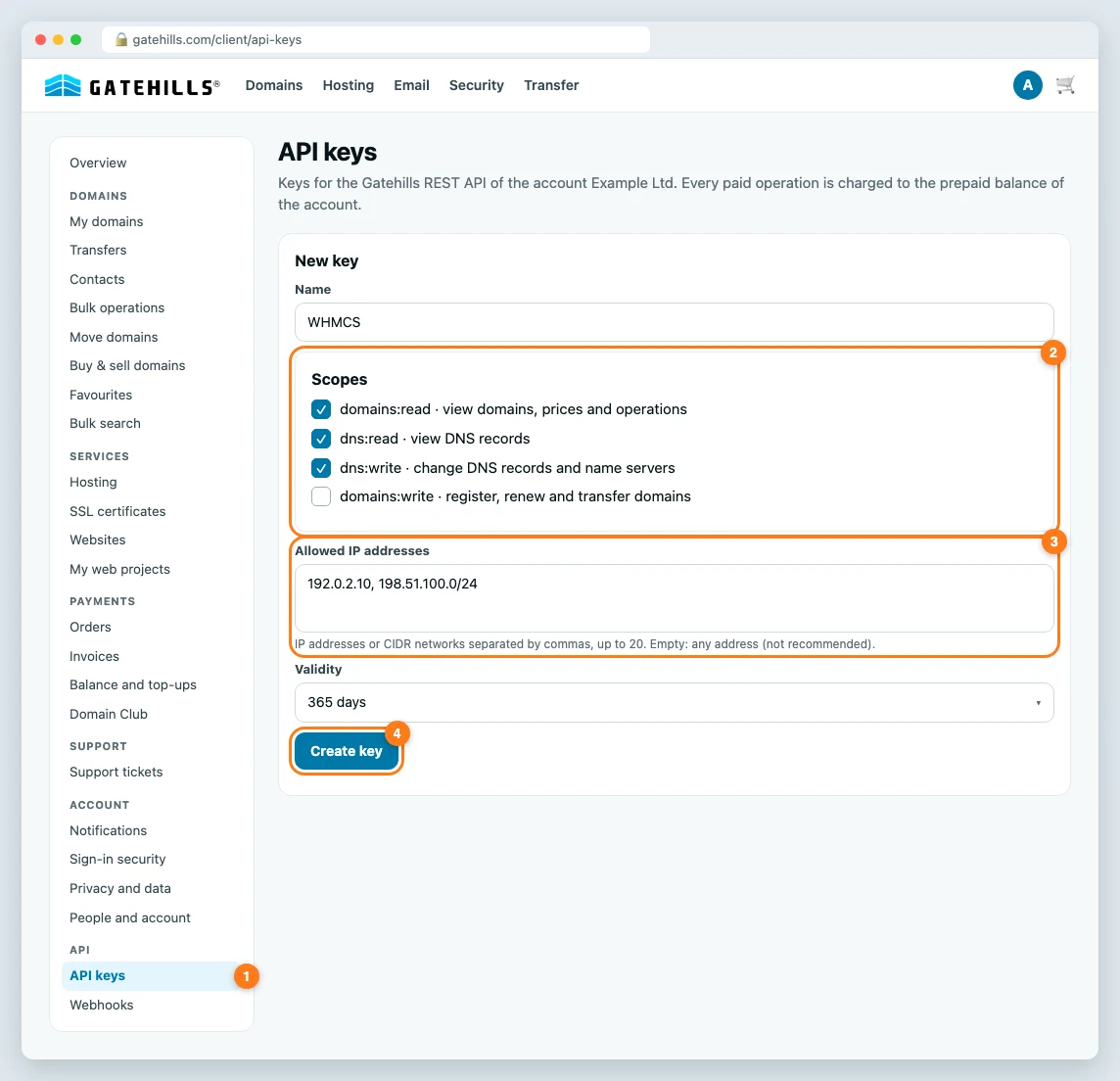
Create an API key
- Open API keys
Sign in to the client area and click “API keys” in the menu (1).
- Name the key
In the “New key” box write a “Name” that tells you where the key is used, for example “WHMCS” or “Backup script” (1 to 80 characters).
- Choose the scopes
Under “Scopes” (2) tick only what the program needs. You only see the scopes allowed by your own functions; at first they are all ticked, so untick the ones you do not need.
- Limit the IP addresses
In “Allowed IP addresses” (3) write the IP addresses or CIDR networks of your server, separated by commas, up to 20. If you leave it empty the key works from any address, which is not recommended. The My IP address page tells you the address of your connection.
- Choose the validity
In “Validity” choose 30, 90, 365 or 730 days, or “Never”. A key with an end date stops working by itself when it expires.
- Create and copy the token
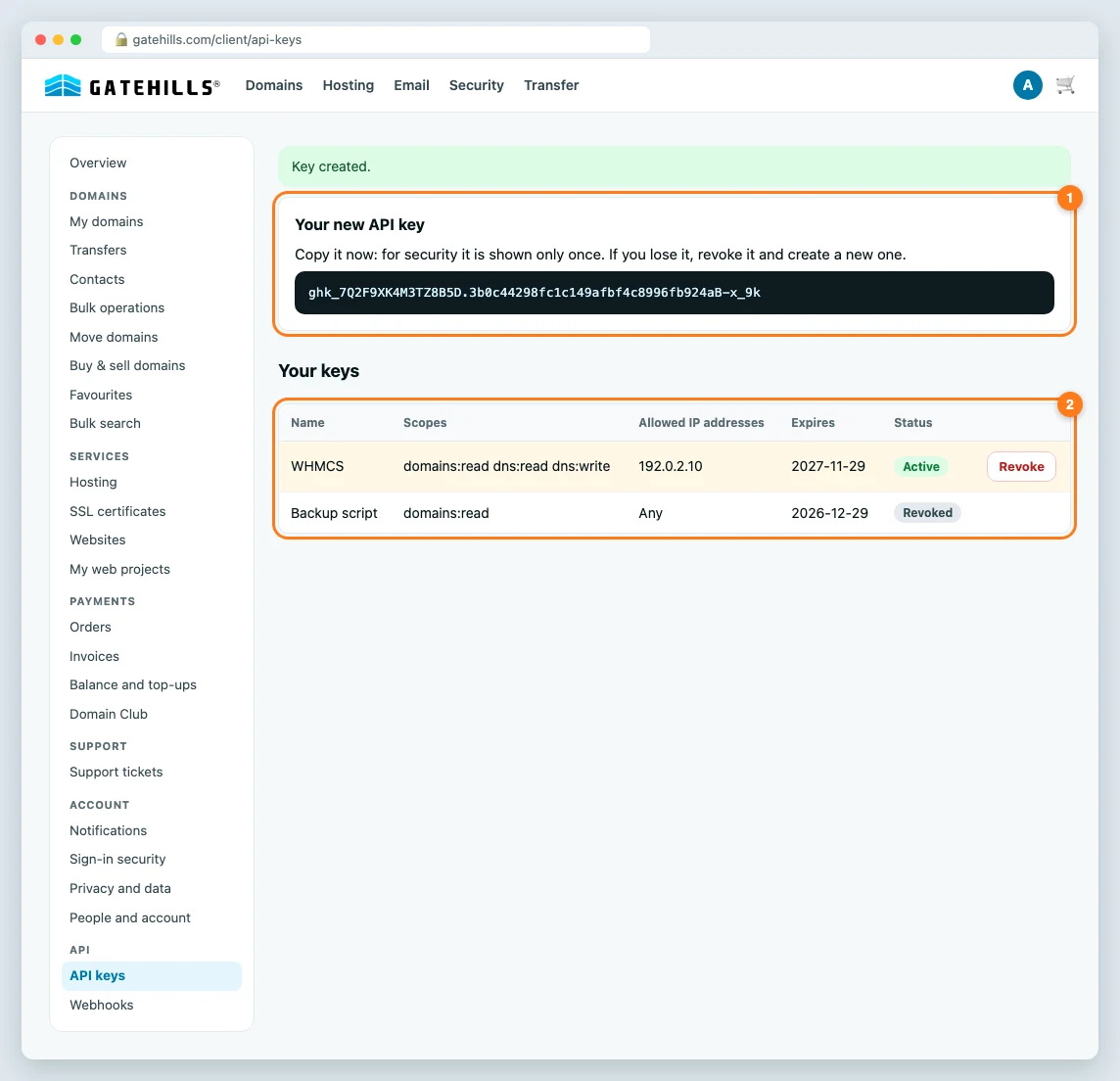
Click “Create key” (4). The box “Your new API key” shows the token and an example request. Copy it now: it is shown only once. The program sends it in the header “Authorization: Bearer TOKEN”.
Check and revoke your keys
The list Your keys shows for each key its Key ID, Scopes, Allowed IP addresses (Any if not limited), Expires, Last used and Status: Active, Expired, Revoked or Suspended. To stop a key click Revoke and confirm: programs using it stop working immediately. A key cannot be edited: to change its scopes or IP addresses, create a new key, update your program, then revoke the old one. The API documentation is linked at the bottom of the page.
| Scope | What it allows |
|---|---|
| domains:read | view domains, prices and operations (contacts: name and email only) |
| domains:write | register, renew and transfer domains (charged to the balance), transfer lock and auth codes |
| contacts:read / contacts:write | view the full contact book / create and change contacts |
| dns:read / dns:write | view DNS records / change DNS records and name servers |
| billing:read | view balance and transactions |
| certificates:read / certificates:write | view and download SSL certificates / request, retry, cancel and revoke free certificates |
| certificates:keys | download the private keys of free certificates (PEM with key, PFX) |
How does an API key work?
Each key has two parts: a public Key ID and a secret. Your program sends both in the header Authorization: Bearer KEY_ID.SECRET, the standard bearer scheme described in RFC 6750. Gatehills stores only a hash of the secret. That is why the token is shown once and cannot be recovered later.
For every request Gatehills checks four things: the key is active, the account may use the API, the request comes from an allowed IP address, and the key has the scope for that operation. A key works with the functions of the person who created it. If that person loses a function, the key loses the matching scopes; if they lose Manage API keys (resellers) or leave the account, the key stops working.
What do the API error codes mean?
| HTTP status | Error code | What it means |
|---|---|---|
| 401 | missing_api_key / invalid_api_key | No token was sent, or the token is wrong. |
| 401 | api_key_revoked / api_key_expired | The key was revoked or has expired: create a new one. |
| 403 | ip_not_allowed | The request comes from an address that is not in “Allowed IP addresses”. |
| 403 | club_required | The Domain Club membership is not active: the key is suspended until you renew. |
| 403 | key_owner_removed | The person who created the key no longer manages keys for the account. |
| 429 | rate_limited | Too many requests in a minute: wait the seconds given in the Retry-After header. |
Every error comes back as JSON with a stable code, so your program can react to it. The full list of endpoints is in the public API documentation, linked at the bottom of the page.
I do not see API keys in the menu. Why?
The menu appears only for reseller accounts or Domain Club members, and only to people with the Manage API keys (resellers) function. Join the Domain Club or ask the primary user to give you the function. See people and account.
How are paid operations charged?
To the prepaid balance of the account. See account balance and top-up.
What happens to my keys if my Domain Club membership ends?
They are suspended, not deleted, and work again as soon as you renew. You can still revoke them. See Domain Club.
Can I be notified of events instead of polling the API?
Yes, with webhooks: Gatehills sends a signed request to your server when something happens to your domains. See webhooks.
Can someone else on my team create keys?
Yes, if they have the Manage API keys (resellers) function. They can only grant scopes within their own functions.
Can I see a token again after creating the key?
No. Gatehills keeps only a hash of the secret, so nobody can show it again. If you lose the token, revoke the key and create a new one.
Is there a limit on requests?
Yes, each key has a limit of requests per minute. Above it the API answers with status 429 and a Retry-After header that says how many seconds to wait.