
How to use the Gatehills mobile app
- The Gatehills app lets you manage your domains, DNS, orders, invoices and support tickets from your phone.
- You find the App Store and Google Play badges at the bottom of every page of the site, under “Mobile apps”.
- You sign in with the same account as on the website, including Google, Microsoft, Apple or Facebook sign-in and two-step verification.
- Push notifications warn you about expiring domains, renewals, orders and replies from support.
The Gatehills app is the free app for iPhone, iPad and Android that lets you manage your domains, DNS, orders, invoices and support tickets from your phone. You sign in with your Gatehills account, pay the same prices as on the website and receive push notifications about expiring domains and support replies.
The app is made for checking and fixing things on the go: renew a domain before it expires, change a DNS record, answer a support ticket or check an invoice. It uses the same account, the same prices and the same rules as the website.
Install the app and sign in
- Download the app
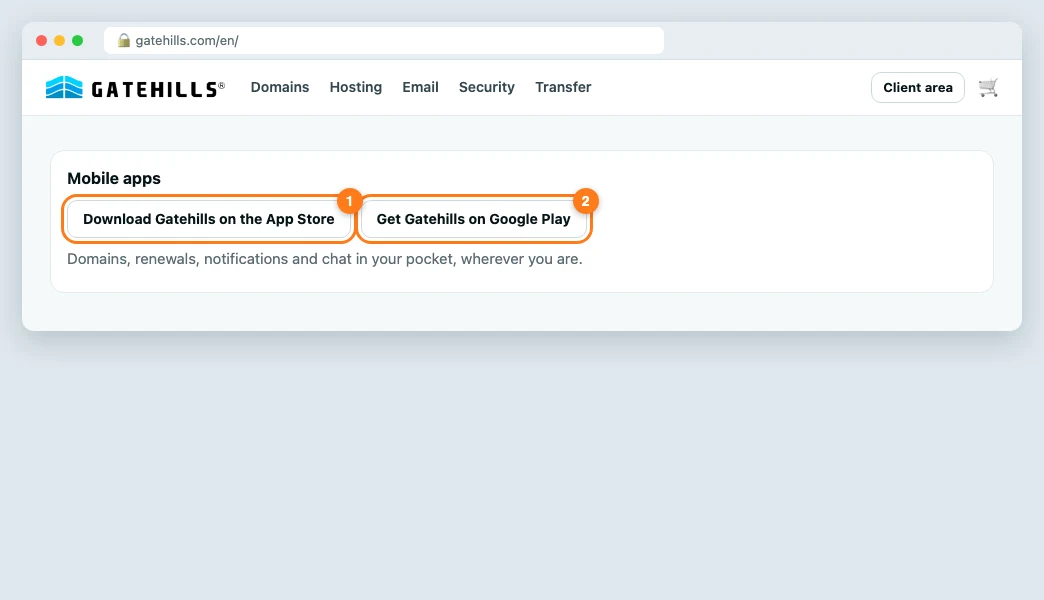
Scroll to the bottom of any page of the site and, under “Mobile apps”, tap the App Store badge (1) for iPhone and iPad or the Google Play badge (2) for Android.
- Sign in
Open the app and sign in. The Gatehills sign-in page opens: use the same email and password as on the website, or the same Google, Microsoft, Apple or Facebook sign-in. If you use two-step verification, you are asked for the code as usual.
- Choose the account
If you have access to more than one account (for example your own and your company's), choose the one you want to work on. You see only what your functions on that account allow.
- Allow notifications
When the app asks, allow notifications so you are warned about expiring domains, orders and support replies.
What you can do in the app
- Domains: see the list with expiry dates, turn auto-renewal and the transfer lock on or off, change name servers and DNS records, and set up email with ready-made templates.
- Search and buy: search domains, see prices, add them to the cart and pay. Renew domains, hosting and certificates.
- Orders, invoices and balance: follow your orders, download invoices as PDF and see your balance. Top-ups are made on the website.
- Support: open tickets with attachments, reply and close them; use the live chat when it is available.
- More: favourites, hosting, SSL certificates, web design projects and the aftermarket.
- Notifications: the same notification centre as the client area, with unread counter.
The Domain Club is bought and managed on the website; the app shows your club prices.
Paying from the app
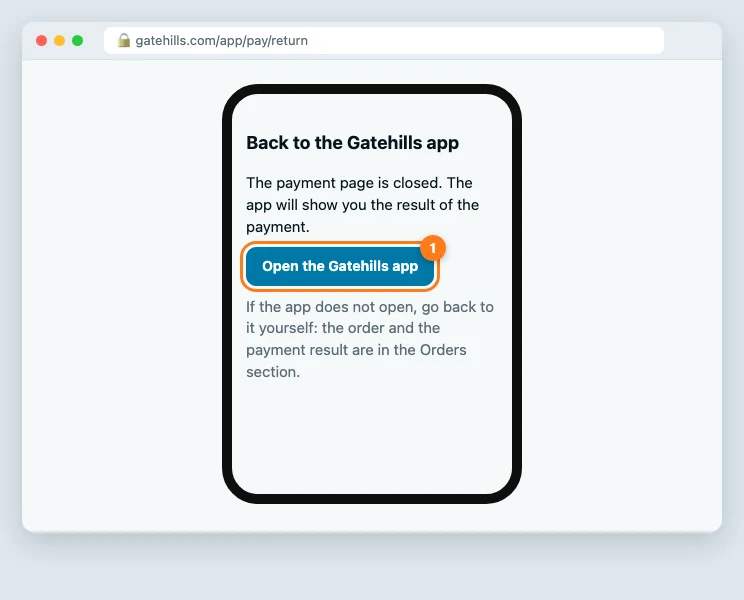
Card payments open the secure payment page of our payment provider in the browser. When you have finished, the page Back to the Gatehills app appears: tap Open the Gatehills app (1) to see the result. If you cancel, the page Payment cancelled tells you that nothing was charged and the order is waiting in the app. You can also pay with your balance.
Gatehills app or website: what is the difference?
Both work on the same account and show the same data. A change made in the app appears on the website straight away, and the other way round. It is a complete domain management app, but a few tasks stay on the website, as the table shows.
| Task | App | Website |
|---|---|---|
| Domains, DNS, name servers and email templates | Yes | Yes |
| Buy and renew domains, hosting and certificates | Yes | Yes |
| Pay by card | Yes, on the payment page in the browser | Yes |
| Pay with the balance | Yes | Yes |
| Top up the balance | No | Yes |
| Buy or manage the Domain Club | No, but club prices apply | Yes |
| Support tickets and live chat | Yes | Yes |
| Push notifications on the phone | Yes | No, notification centre in the client area |
Install the app only from the official stores, App Store and Google Play. The badges at the bottom of every page of the Gatehills site open the right listing, so you do not install a copy by mistake.
Is the app free?
Yes, you can download it for free. You pay only for the products you buy, at the same prices as on the website.
Which notifications do I receive?
Expiry reminders, expired domains, renewal and auto-renewal results, redemption, order paid or completed, card refused, and replies to your support tickets. You receive only the notifications for the data your functions let you see.
How do I receive or stop offers by push notification?
Push notifications about offers are off unless you turn them on. You can change your choice in the app or in Privacy and data → App notifications about offers in the client area. See privacy and data.
Why do some links open the app instead of the browser?
Links to the client area, to your domains and to the WHOIS lookup open directly in the app when it is installed. Checkout and payment pages always stay in the browser.
Can I top up my balance in the app?
No, the app shows the balance and its transactions; top-ups are made on the website. See account balance and top-up.
Do I need a separate account for the app?
No. You sign in with the same account and the same sign-in method as on the website. Your domains, orders, invoices and balance are the same in both places.
Does the app work with a team account?
Yes. If you have access to more than one account, you choose the one to work on after signing in. You see only what your functions on that account allow. See people and account.