
How to manage the contacts and the registrant of your domain
- Domain contacts are four roles on every domain: “Registrant” (the legal holder), “Administrative”, “Technical” and “Billing”.
- You keep people and companies in the address book (“Contacts” in the menu) and assign them in “My domains” → your domain → “Contacts”.
- Changing name, organisation or email of the registrant is a change of registrant: transfers are locked for 60 days (ICANN rule).
- Use a real email address that you read: registries send verification and transfer codes to it.
Domain contacts are the people and companies recorded for a domain at the registry. At Gatehills you set them in My domains → your domain → Contacts, choosing from your address book. The registrant is the legal holder. Changing the name, organisation or email of the registrant locks transfers for 60 days.
What are domain contacts and who is the registrant?
The registrant is the person or company that legally holds the domain. The other contacts are the people the registry and Gatehills can reach for administrative, technical and billing matters; often they are all the same person. Your first contact is created from the billing details at checkout. You can add more, for example your company, your web agency or a colleague, and use them on any domain of the account.
The domain registrant decides who owns the domain, so choose it with care. At each registry a contact also has its own identifier, called a handle.
| Role | Who it is | How you change it |
|---|---|---|
| Registrant | The person or company that legally holds the domain | With “Change registrant”; transfers are then locked for 60 days |
| Administrative | The person for administrative matters | With “Save contacts”; the change goes to the registry straight away |
| Technical | The person for technical matters | With “Save contacts”; the change goes to the registry straight away |
| Billing | The person for billing matters | With “Save contacts”; the change goes to the registry straight away |
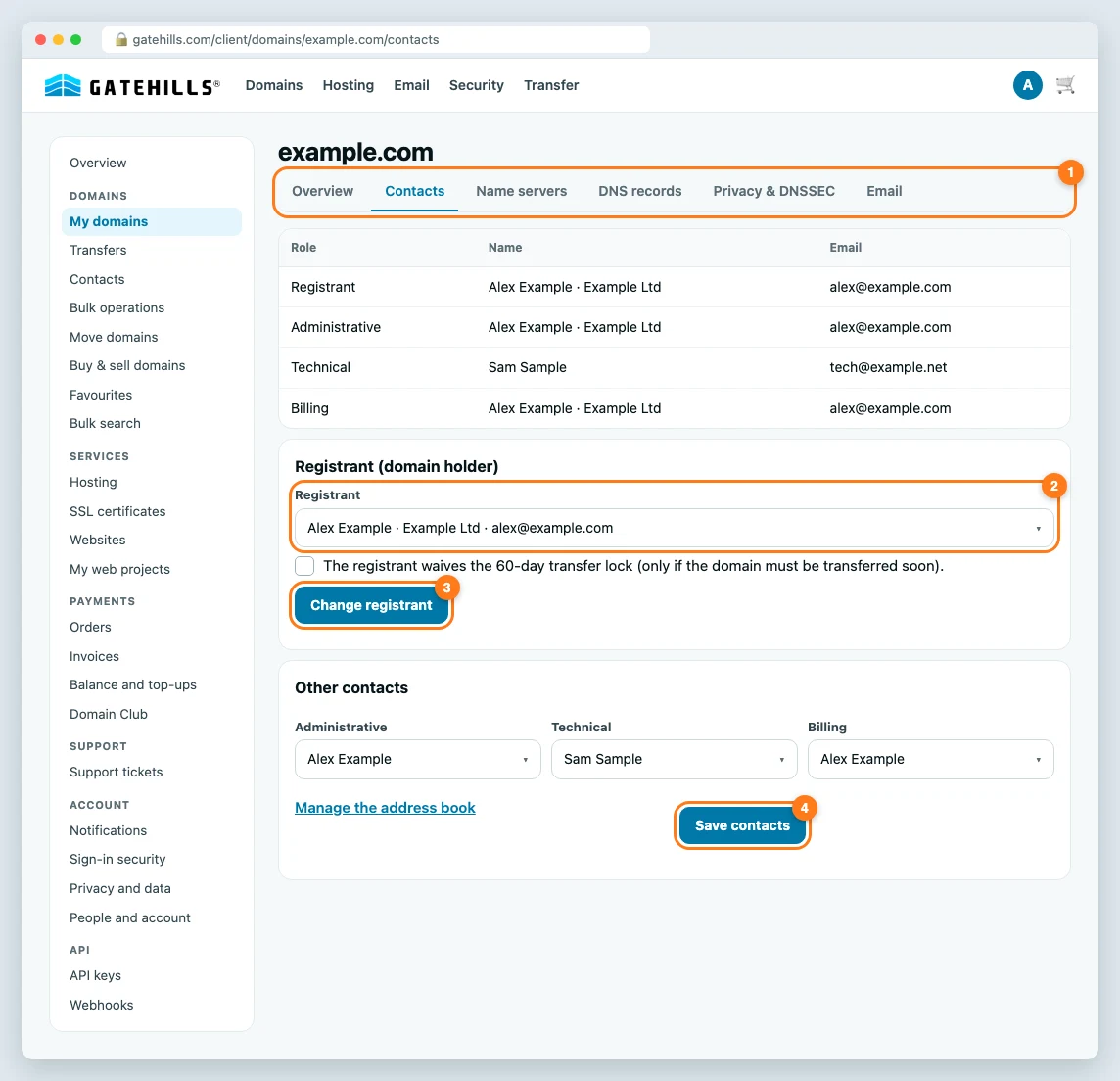
Change the contacts of a domain
- Open the Contacts tab
Go to “My domains”, click the domain name and open the “Contacts” tab (1). The table shows who is the “Registrant”, “Administrative”, “Technical” and “Billing” contact today.
- Add the contact first, if it is new
The lists only contain contacts from your address book. If the person or company is not there yet, click “Manage the address book” and create it with “New contact” (see below), then come back.
- Change the administrative, technical or billing contact
In the “Other contacts” box choose a contact for each role and click “Save contacts” (4). The change is sent to the registry straight away.
- Change the registrant
In the “Registrant (domain holder)” box choose the new holder (2) and click “Change registrant” (3). We inform the old and the new registrant by email and lock transfers for 60 days.
- Only if the domain must leave soon
Before clicking “Change registrant” you can tick “The registrant waives the 60-day transfer lock”. Do it only if the domain has to be transferred to another registrar in the next few weeks.
- Confirm the registrant email
If the registrant email is new, the registrant receives a confirmation email. Open the link and click “Confirm email address” within 15 days, or the domain is suspended until the address is confirmed.
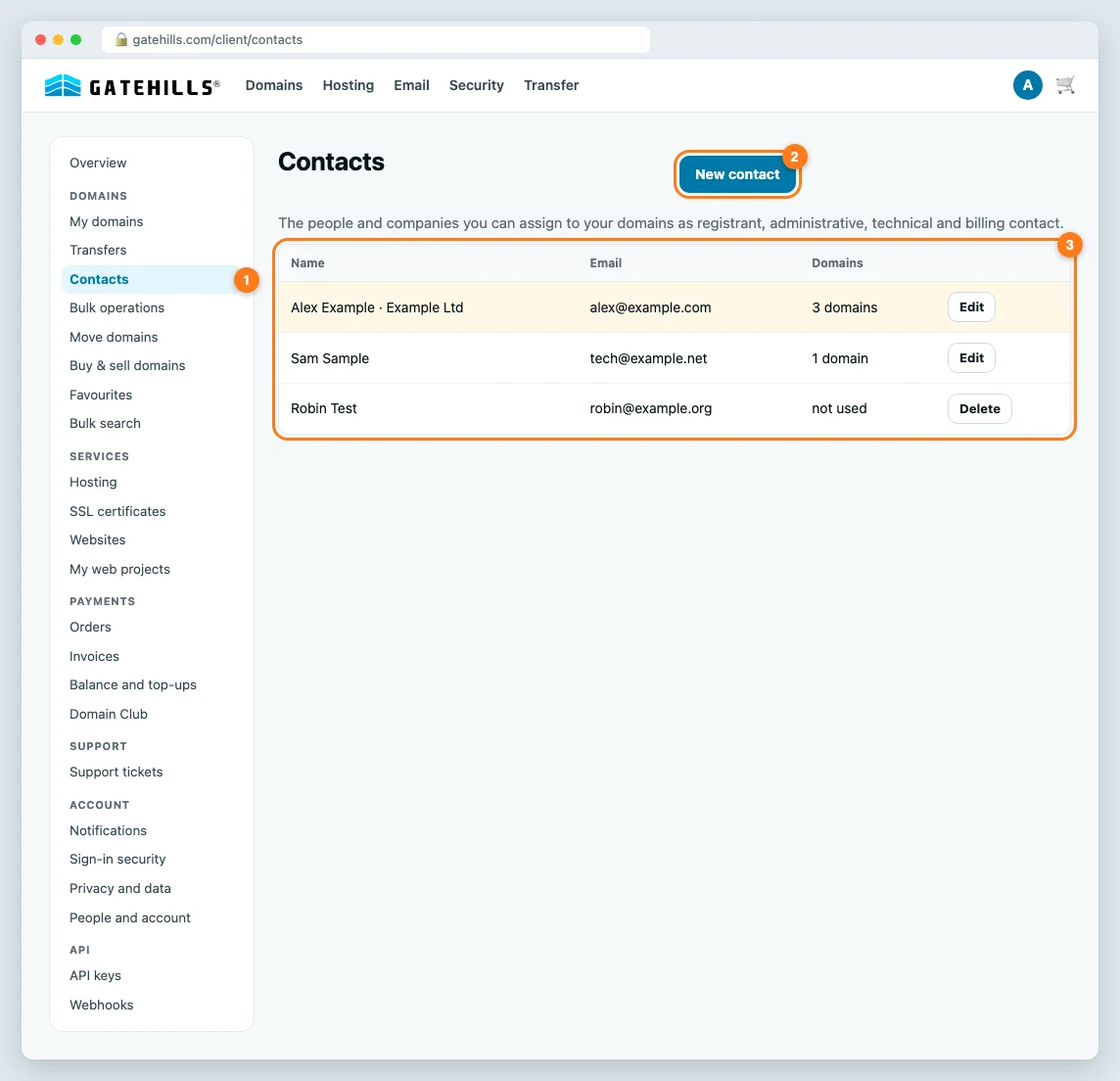
Create or edit a contact in the address book
- Choose Contacts in the menu (1). The column Domains shows how many domains use each contact.
- Click New contact (2), or Edit next to an existing contact (3).
- Fill in Name, Organisation (only for a company), the address, Country, state or province, City, phone and Email. Write the phone without the country code: you choose the code from its own list.
- Leave Publish these details in the public WHOIS/RDAP unticked unless you really want your details to be public.
- Click Save. The contact is sent to the registries of the domains that use it.
If the contact is the registrant of some domains, the form warns you: changing its name, organisation or email is a change of registrant, with the same 60-day transfer lock. At the bottom of the edit page, At the registries shows the contact identifier (handle) at each registry and whether it is aligned.
What happens after a change of registrant?
When you click Change registrant, Gatehills informs the old and the new registrant by email. Transfers to another registrar are then locked for 60 days, unless the registrant waived the lock. The rule comes from the ICANN Transfer Policy.
If the registrant email is new, the registrant must confirm it within 15 days. Without confirmation the domain is suspended until the address is confirmed.
Changes to the administrative, technical and billing domain contacts do not lock transfers. They go to the registry as soon as you save.
Who should be the registrant?
The person or company that should legally own the domain. If a web agency registers a domain for you, make sure you are the registrant, not the agency.
Can I change the registrant of every domain?
Not always. For some extensions the registry does not allow changing the owner online: the Contacts tab says so and offers Contact support.
Why are transfers locked for 60 days after a change of registrant?
It is an ICANN rule that protects you from domain theft. During those 60 days the domain cannot be transferred to another registrar, unless the registrant waived the lock when the change was made.
The registrant did not receive the confirmation email. What can I do?
Check the spam folder, then open the domain Overview and click Send the confirmation email again. You can ask for a new email every few minutes.
Are my contact details public?
No, not by default. They are published in the WHOIS/RDAP only if you tick the publish option on the contact. See also WHOIS privacy.