
Find your domains: the overview and the My domains list
- The domain list in “My domains” shows all the domains of the account, with status, expiry date and renewal type.
- The “Overview” page shows at a glance how many domains are active, expiring or need action, and the next expiry dates.
- You can search by name and filter by “Expiring”, “Action needed” or “Manual renewal”.
- Click “Manage” or the domain name to open the domain and change its settings.
On Gatehills you see all your domains in the client area: the Overview page sums them up, and the domain list in My domains shows each one. The list has 50 domains per page, a search box and four filters. Each row shows the status, the expiry date and whether renewal is automatic or manual.
Overview or domain list: which one do I use?
When you sign in, the client area opens on the Overview page. It is the quickest way to check that everything is in order: which domains expire soon, which ones have a problem to fix, your balance and your open tickets. For the complete list, with search and filters, use My domains in the menu.
| Feature | Overview | My domains |
|---|---|---|
| What you see | Counters and the next expiry dates | Every domain of the account |
| Search and filters | No; the tiles open the filtered list | Search by name and four filters |
| Renew button | In the Upcoming expiry dates table | On domains expiring within 30 days |
| Other information | Balance, open tickets, unread notifications | Status, expiry, renewal type |
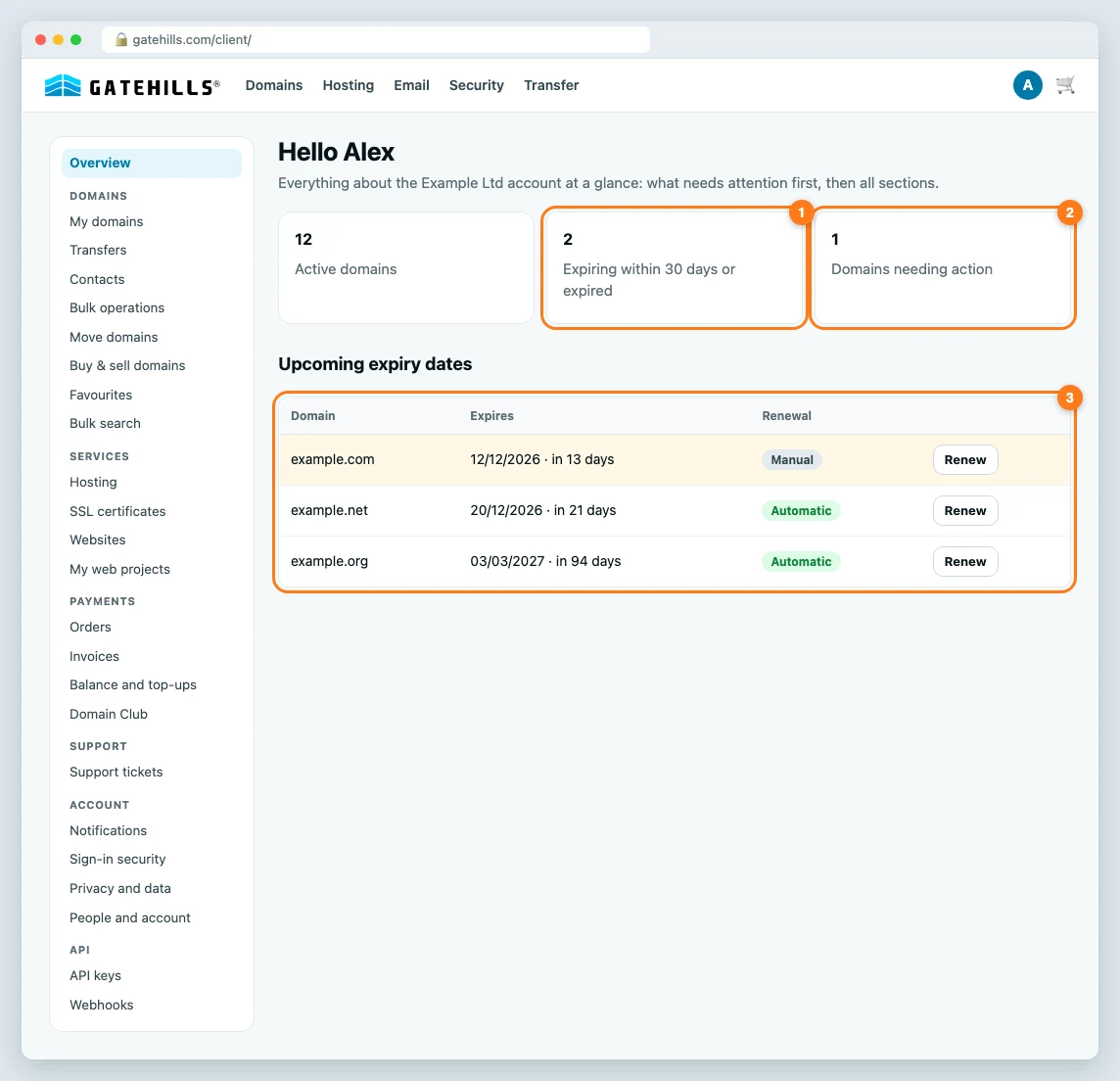
Check your domains from the overview
- Open the Overview
Sign in to the client area. The “Overview” page opens first; you can come back to it at any time with “Overview” at the top of the menu.
- Look at the tiles
The tiles show the “Active domains”, the domains “Expiring within 30 days or expired” (1) and the “Domains needing action” (2), plus your balance, open tickets and unread notifications. Click a tile to open the list already filtered.
- Check the upcoming expiry dates
The “Upcoming expiry dates” table (3) lists the next domains to expire, with the days left and whether renewal is “Automatic” or “Manual”.
- Renew in one click
Click “Renew” next to a domain: the renewal goes to the cart for the minimum period of the extension, and you pay with card or balance. To choose more years, open the domain instead.
Search and filter the My domains list
- Open My domains
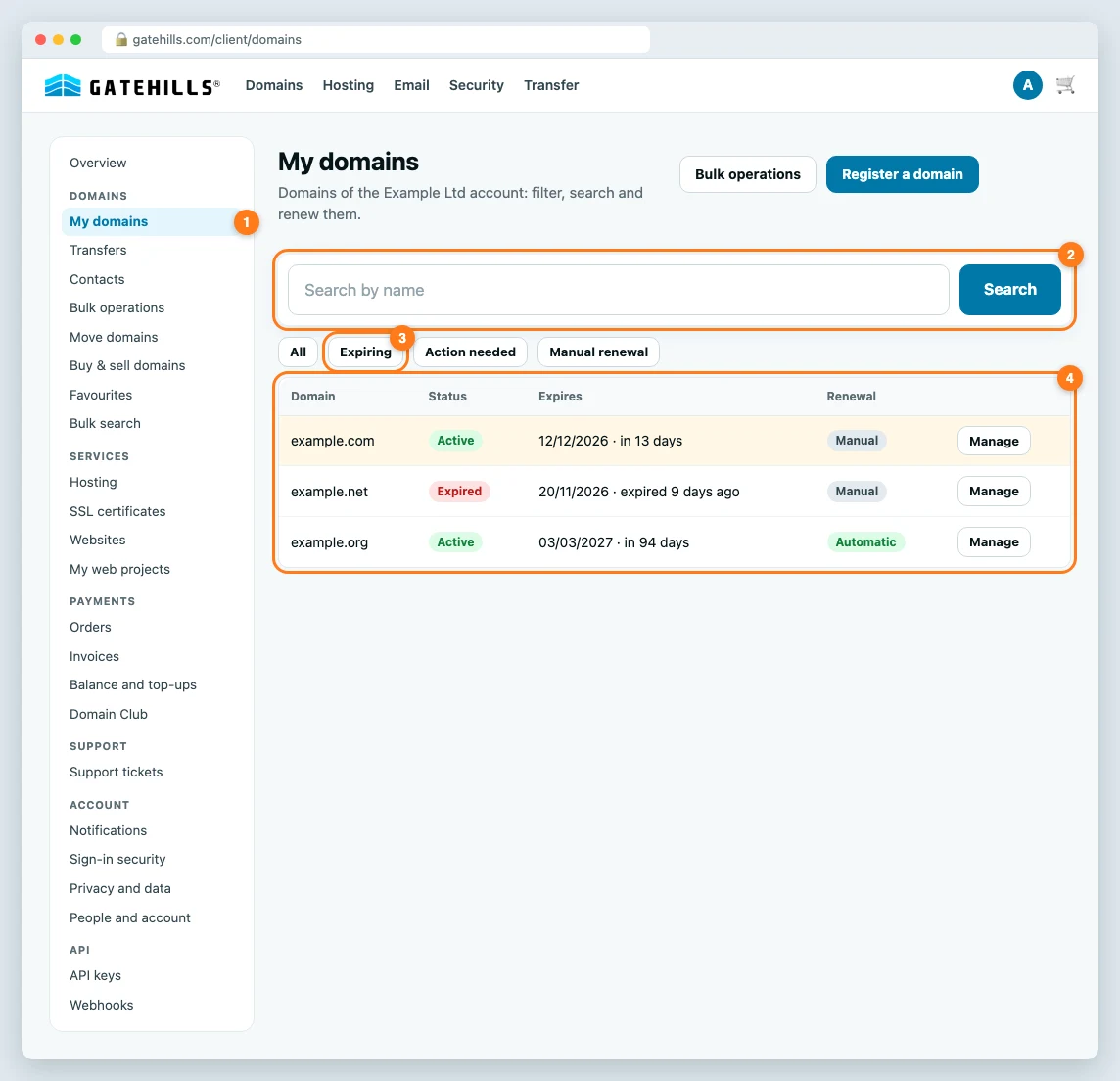
Choose “My domains” in the menu (1). A number next to it shows how many domains expire within 30 days.
- Search by name
Type all or part of the name in “Search by name” (2) and click “Search”. Names with accents or non-Latin letters can be typed as you see them.
- Use the filters
Click a filter (3): “All”, “Expiring” (within 30 days or already expired, sorted by date), “Action needed” or “Manual renewal”. Each filter shows how many domains it contains.
- Open a domain
Click the domain name or “Manage” (4) to open its page, where you change renewal, name servers, DNS, contacts and the other settings. Domains expiring within 30 days also have a “Renew” button directly in the list.
Where do I see when my domain expires?
Each row of the domain list shows the expiry date. The Expiring filter collects the domains that expire within 30 days or have already expired, sorted with the nearest date first. On the Overview, the Upcoming expiry dates table also shows how many days are left.
The Renewal column says Automatic or Manual. With automatic renewal we renew the domain about 30 days before expiry.
What the statuses mean
| Status | What it means |
|---|---|
| Active | The domain works normally. |
| Registration in progress | We are registering it with the registry; it usually takes a few minutes. |
| Transfer in progress | The domain is moving to Gatehills from another registrar. |
| Expired | The expiry date has passed: renew it as soon as possible. |
| Deleted, recoverable | The registry deleted it after expiry: you can still restore it for a limited time. |
| Being deleted | Final deletion by the registry: it can no longer be recovered. |
| Suspended | The domain is blocked: open it to see why and what to do. |
| Transferred away / Deleted | The domain is no longer managed by Gatehills. |
A red Action needed label under the name means that the domain is suspended, has no registrant or has contact details the registry would reject. Open the domain: a message at the top explains what to fix.
The stages after expiry follow the rules of each registry. ICANN describes them for generic extensions on its gTLD lifecycle page.
How many domains does the list show?
50 per page. Use Next and Previous at the bottom, or narrow the list with the search and the filters.
What does the Renewal column mean?
Automatic means auto-renewal is on and we renew the domain about 30 days before expiry. Manual means you have to renew it yourself. See renewals.
Why does a domain show Action needed?
It is suspended, it has no registrant, or one of its contacts is incomplete (for example phone or country missing). Open the domain and follow the message at the top; to fix contacts see domain contacts.
Can I change many domains at once?
Yes: use Bulk operations at the top of the list to change name servers, transfer lock or auto-renewal, or to renew, on several domains together. See bulk operations.
Can I find a domain with accents or non-Latin letters?
Yes. Type it in the search box as you see it, for example with accents or in Arabic or Chinese script.
Related guides