
How to change many domains at once with bulk operations
- Bulk domain management at Gatehills: choose “Bulk operations” in the menu, pick an operation, tick the domains and apply.
- Available operations: name servers, transfer lock, auto-renewal and renewal (added to the cart).
- Up to 500 domains at a time; one operation at a time per account, with an hourly limit.
- Each domain is confirmed by the registry: the result page shows the outcome of every domain.
Bulk domain management means applying one change to many domains in a single step. At Gatehills you open Bulk operations in the client area, choose the operation, tick up to 500 domains and apply. You can change name servers, lock or unlock transfers, switch auto-renewal on or off and add renewals to the cart.
What is bulk domain management for?
If you manage many domains, changing them one by one takes time. With bulk operations you apply the same change to all the domains you select, for example moving them to new name servers before a website migration, or turning on auto-renewal for the whole portfolio.
Each domain is still confirmed by its own registry. The result page shows the outcome of every domain, so you always know which changes went through.
“Lock transfer” sets the registry status clientTransferProhibited, explained in the ICANN EPP status codes.
Run a bulk operation
- Open Bulk operations
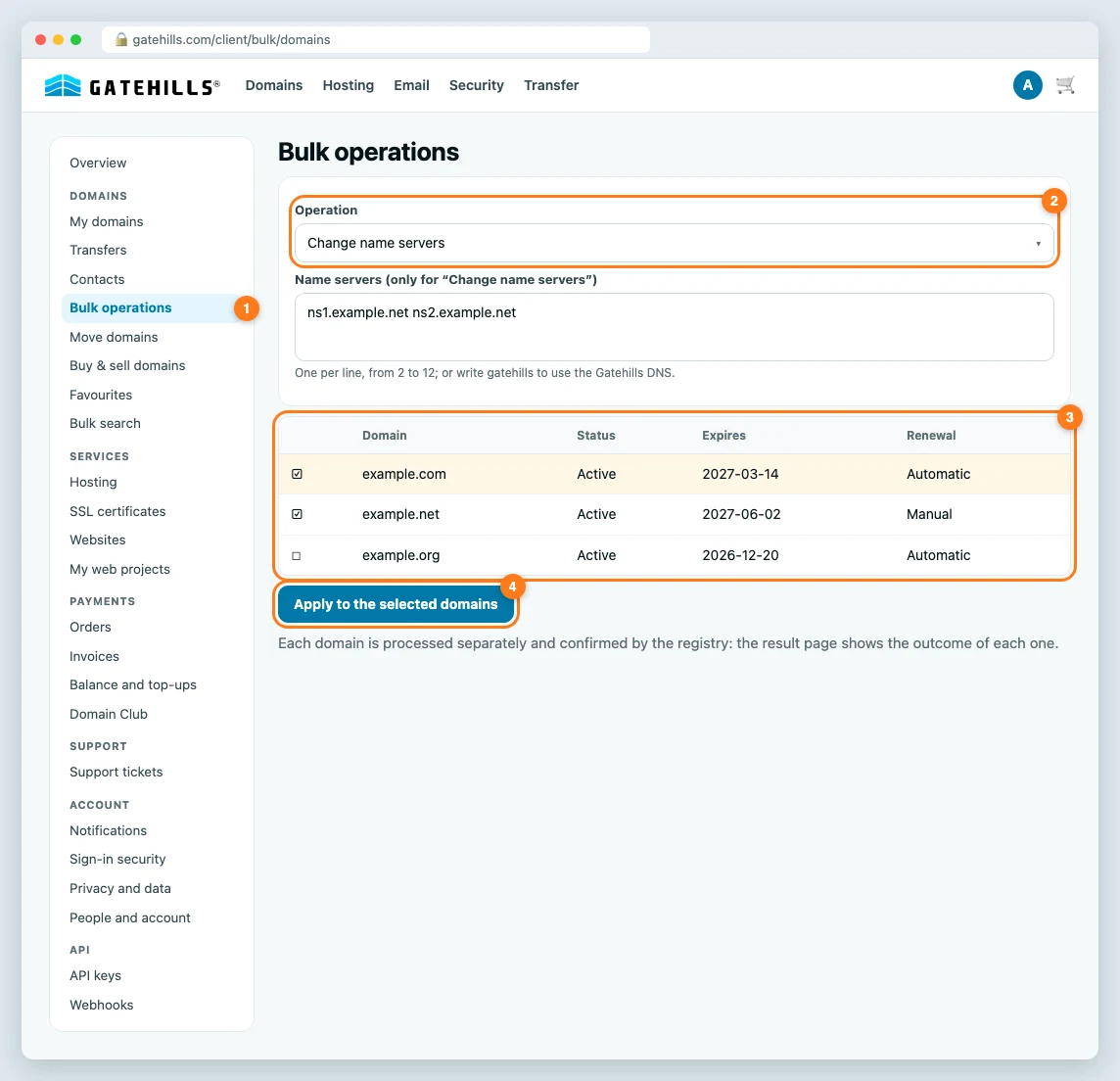
In the client area choose “Bulk operations” in the menu (1). You see all the domains of the account with their “Status”, “Expires” date and “Renewal” (automatic or manual).
- Choose the operation
In “Operation” (2) choose “Change name servers”, “Lock transfer”, “Unlock transfer”, “Turn on auto-renewal”, “Turn off auto-renewal” or “Renew for 1 year (add to cart)”.
- Write the name servers, if needed
Only for “Change name servers”: write from 2 to 12 name servers, one per line, for example “ns1.example.net”. Write “gatehills” to use the Gatehills DNS.
- Select the domains
Tick the domains to change (3), up to 500 at a time.
- Apply
Click “Apply to the selected domains” (4). A result page opens and updates by itself every few seconds while the operation is “In progress”.
- Check the result
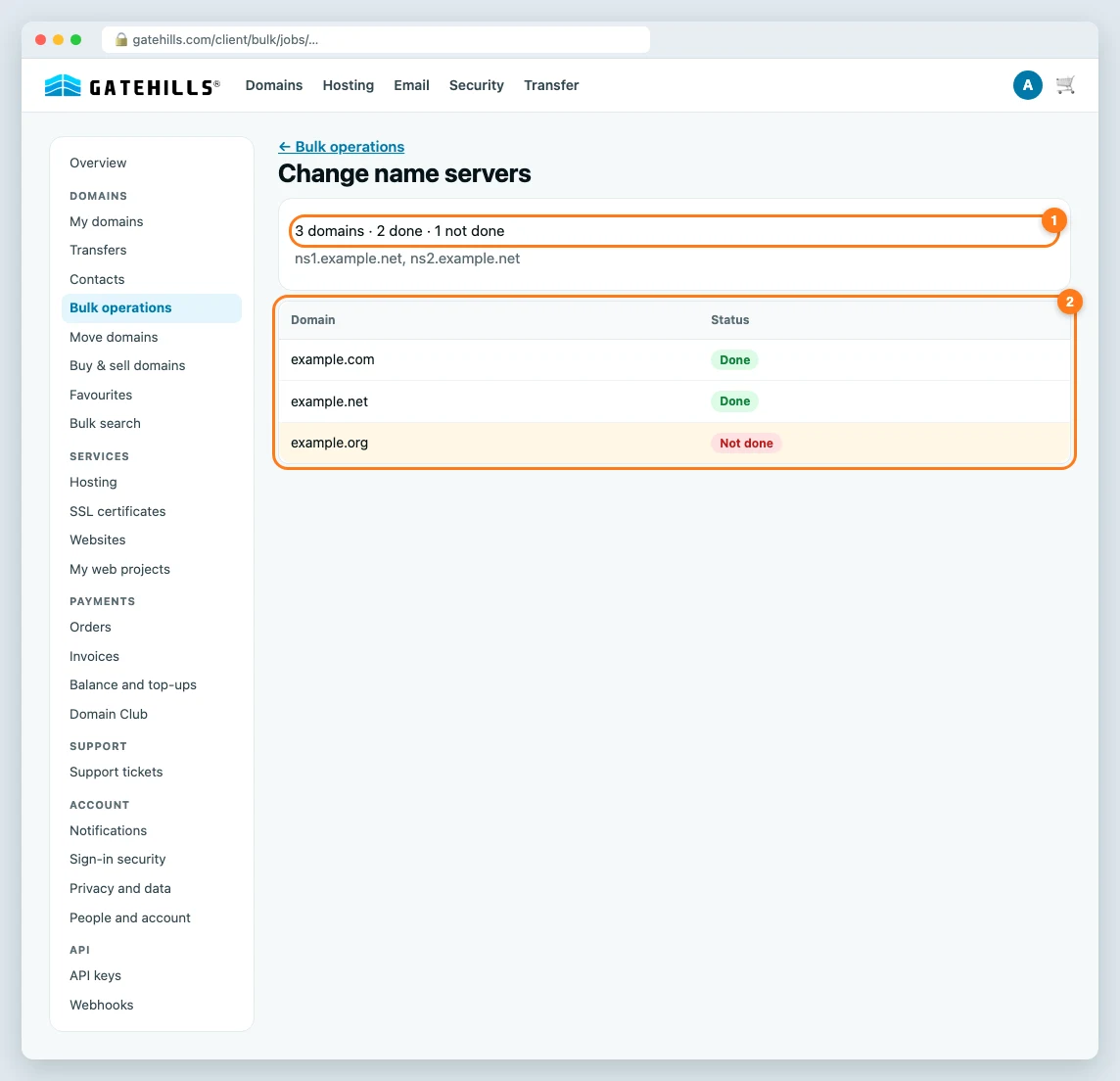
Each domain shows “Done”, “Not done” or “Skipped”, with the reason. When everything is processed the status changes to “Completed”.
Which bulk operations are available?
| Operation | What it does | Permission needed |
|---|---|---|
| Change name servers | Sets the same name servers on all selected domains, or the Gatehills DNS | Manage DNS and name servers |
| Lock transfer / Unlock transfer | Turns the transfer lock on or off | Register, renew and transfer domains |
| Turn on / Turn off auto-renewal | Domains renew by themselves before expiry, or not | Register, renew and transfer domains |
| Renew for 1 year (add to cart) | Adds a renewal for each domain to the cart; you pay at checkout | Register, renew and transfer domains |
With Renew for 1 year (add to cart) nothing is charged until you pay the cart. The price is shown in the cart. Some extensions have a longer minimum renewal period, and domains that cannot be renewed right now are left out. Your recent operations are listed under Recent operations at the bottom of the page: click one to see its results again.
How long does a bulk operation take?
The time depends on the number of domains and on the registries, because each registry confirms each domain. While the operation is In progress, the result page updates by itself every few seconds. When everything is processed, the status changes to Completed.
You can close the page: the operation continues on our side. Only one operation per account runs at a time, and an hourly limit applies to the number of domains in bulk operations. If you need more, wait for the current operation to end or try again later.
Why is a domain marked Skipped or Not done?
The reason is shown next to the domain. For example, domains with hosting keep their name servers, a domain whose registrant changed less than 60 days ago cannot be unlocked, and domains that cannot be renewed right now stay out of the cart.
How many domains can I change at once?
Up to 500 per operation. There is also an hourly limit on the number of domains in bulk operations: if you reach it, try again later.
Why is a domain marked Not done?
The reason is shown next to it: for example the registry did not confirm, the domain is suspended, or the change is not possible in its current state. You can try again later or change that domain from its own page.
Can I close the page while the operation runs?
Yes. The operation continues on our side. Come back to Bulk operations and open it from Recent operations.
Can I renew all my domains for more than one year?
Bulk renewal adds the shortest renewal period of each extension. To choose more years, renew the domain from its own page. See renewals.