
Protect your domain with DNSSEC
- DNSSEC signs the DNS answers of your domain, so that forged answers can be detected.
- You find it in “My domains” → your domain → “Privacy & DNSSEC”.
- With the Gatehills name servers it takes one click: “Turn DNSSEC on”. We sign the zone and publish the DS records at the registry.
- With external name servers you copy the DS records from your DNS provider; some extensions do not support it.
On Gatehills you turn on DNSSEC in the client area, on the Privacy & DNSSEC tab of the domain. With the Gatehills name servers it is one click and free: we sign the zone and publish the DS record at the registry. With other name servers you paste the DS records of your provider, up to 8.
What is DNSSEC?
DNSSEC (DNS Security Extensions) adds a digital signature to the DNS answers of your domain. Without it, an attacker on the network could send fake answers and lead visitors to a different server. Resolvers that check the signature reject forged answers.
It works in two parts. First the zone is signed with a key. Then the registry publishes a DS record: a fingerprint of that key, which links the signature to the domain. Both parts must match, otherwise validating resolvers treat the domain as broken. ICANN explains the background in DNSSEC – what is it and why is it important?
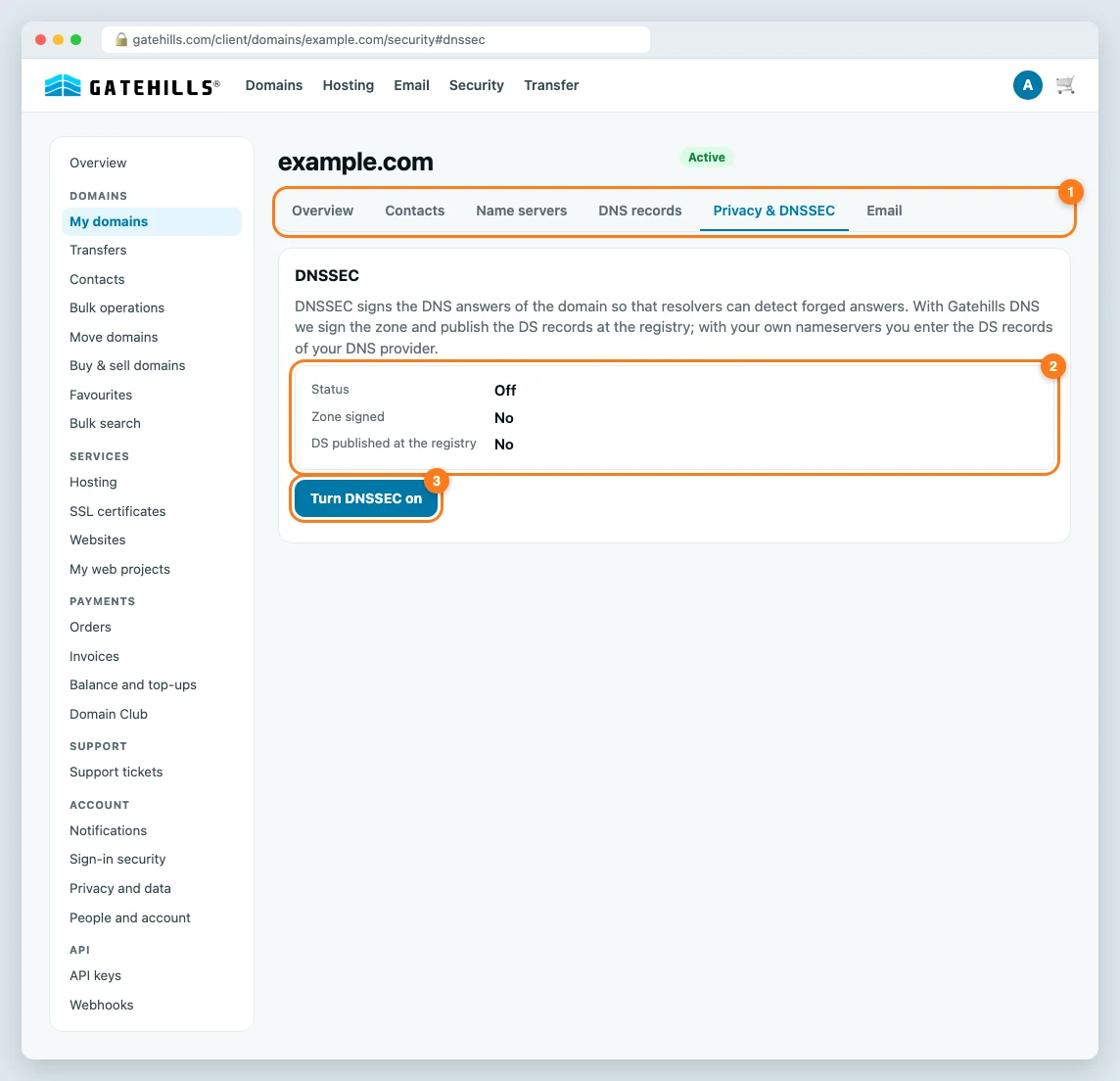
Turn on DNSSEC with the Gatehills DNS
- Open the domain
Choose “My domains” in the menu, click the domain and open the “Privacy & DNSSEC” tab (1). The box is below WHOIS privacy.
- Check the status
The box shows the “Status” and, below, “Zone signed” and “DS published at the registry” (2). If the domain uses other name servers, a blue message says so: see the next section.
- Turn it on
Click “Turn DNSSEC on” (3). The status goes through “Signing the zone” and “Waiting for the registry” and then becomes “Active”, usually within a short time. You do not need to type anything.
- Check that it works
When the status is “Active”, both lines say “Yes”. We check the DS records regularly; the date appears under “Last check”.
What do the statuses mean?
| Status | What it means |
|---|---|
| Off | The zone is not signed and no DS record is published. |
| Signing the zone | We are creating the keys and signing your records. |
| Waiting for the registry | The zone is signed; the registry has not published the DS record yet. |
| Active | Zone signed and DS published: protection is on. |
| Removing DS at the registry | You asked to turn it off; we are removing the DS record first. |
| Being turned off | The DS is gone; the signature is removed after a waiting period. |
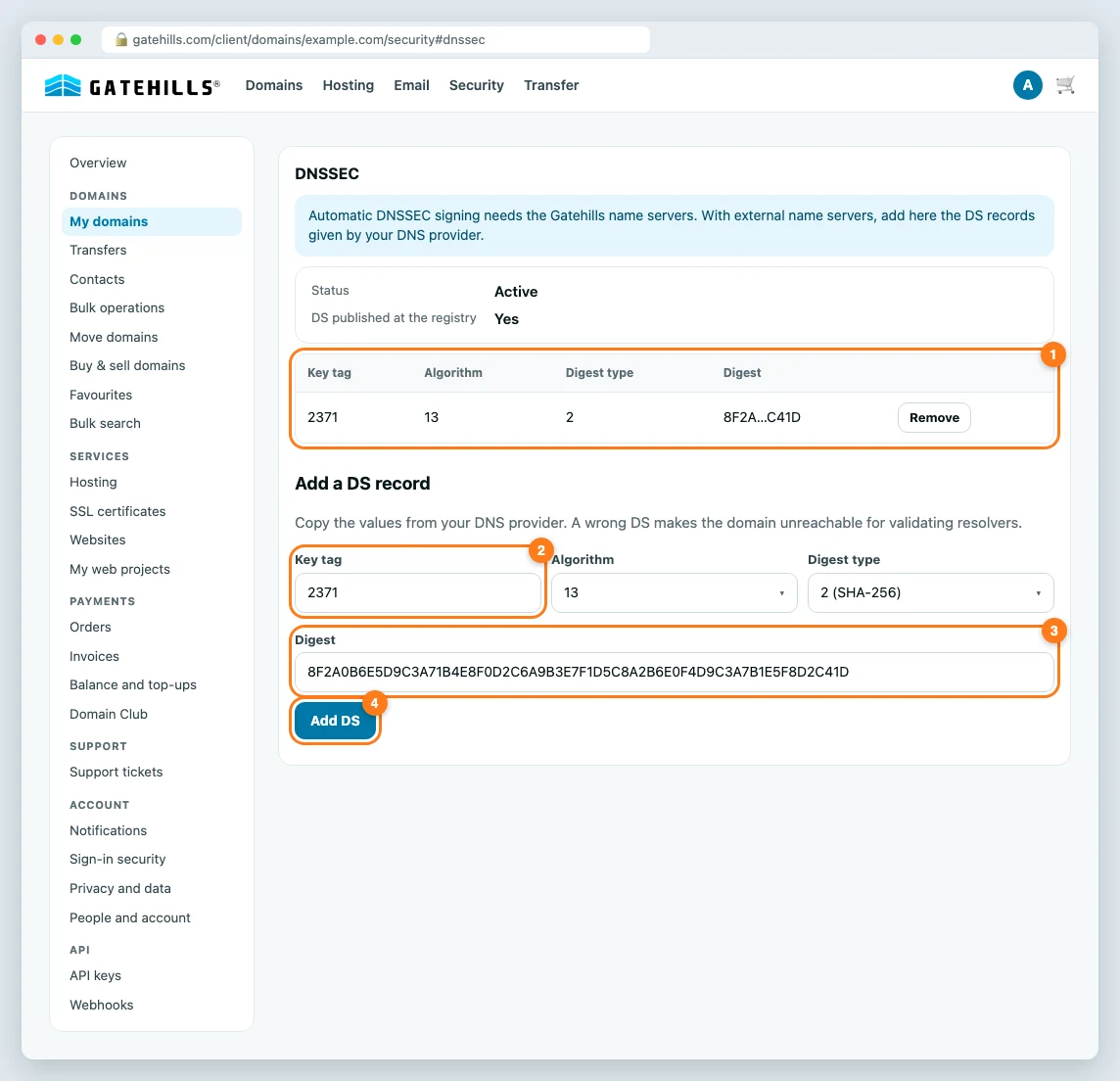
Add DS records with external name servers
- Turn it on at your provider
In the panel of your DNS provider (for example Cloudflare), enable signing. The provider shows the DS values: key tag, algorithm, digest type and digest.
- Open Privacy & DNSSEC
On the domain page open the “Privacy & DNSSEC” tab. The blue message confirms that automatic signing needs the Gatehills name servers and that you can add DS records here.
- Copy the values
In “Add a DS record” fill in “Key tag” (2), choose “Algorithm” and “Digest type”, and paste the “Digest” (3) exactly as your provider shows it.
- Add the DS
Click “Add DS” (4). The record is sent to the registry and appears in the table (1). You can add up to 8; to remove one click “Remove” and confirm.
Which DS record values are accepted?
- Key tag: a number from 0 to 65535.
- Algorithm: 13, 8, 10, 14, 15 or 16. Most providers today use 13 (ECDSA P-256).
- Digest type: 2 (SHA-256, 64 hexadecimal digits) or 4 (SHA-384, 96 hexadecimal digits).
- Digest: the long code from your provider, copied without changes.
If a value is wrong, the form shows Invalid DS record and nothing is sent to the registry. Manual DS records are removed one at a time.
Turn DNSSEC off
With the Gatehills DNS click Turn DNSSEC off and confirm. We first remove the DS records at the registry (Removing DS at the registry). Then, after a waiting period while resolvers forget them, we remove the signature (Being turned off). The page shows the date and time when the signature will be removed.
With external name servers, remove the DS records here before turning off signing at your provider.
Do I need DNSSEC?
It is recommended: it protects visitors and email from forged DNS answers. With the Gatehills DNS it costs nothing and needs no maintenance.
How long does it take to become Active?
Signing is immediate; the registry usually publishes the DS records within a short time. Meanwhile the status shows Waiting for the registry.
What does “Mismatch: we are checking” mean?
Our last check found a difference between the DS records at the registry and the zone. We check again automatically; if it lasts, open a support ticket.
Who in my team can change it?
People with the DNS function. Without it the box is read-only. See people and account.
Does signing slow down my website?
No. Visitors do not notice any difference. Only resolvers do the extra check, and they keep the result in cache like any other DNS answer.