
How to protect your account: password, 2FA and passkeys
- Account security on Gatehills is managed in “Account” → “Sign-in security” in the client area.
- You can change your password, turn on two-step verification (2FA) with an authenticator app and add passkeys.
- You can also sign in with an external account: Google, Microsoft, Facebook, Apple or UAE PASS.
- The same page lists your sign-ins of the last 90 days and shows the 6-digit verification code for support.
Account security is the set of sign-in protections that keep other people out of your Gatehills account. On Gatehills you manage it on one page, Sign-in security: password, two-step verification, passkeys, external sign-ins and the activity of the last 90 days. Every change happens on our secure sign-in page, so Gatehills never sees your password or your codes.
A strong sign-in protects your domains, your payments and your data. With a password plus two-step verification, someone who steals your password still cannot get in. A passkey goes one step further: you sign in with your fingerprint, your face or the PIN of your device, with no password to remember.
Secure your sign-in
- Open Sign-in security
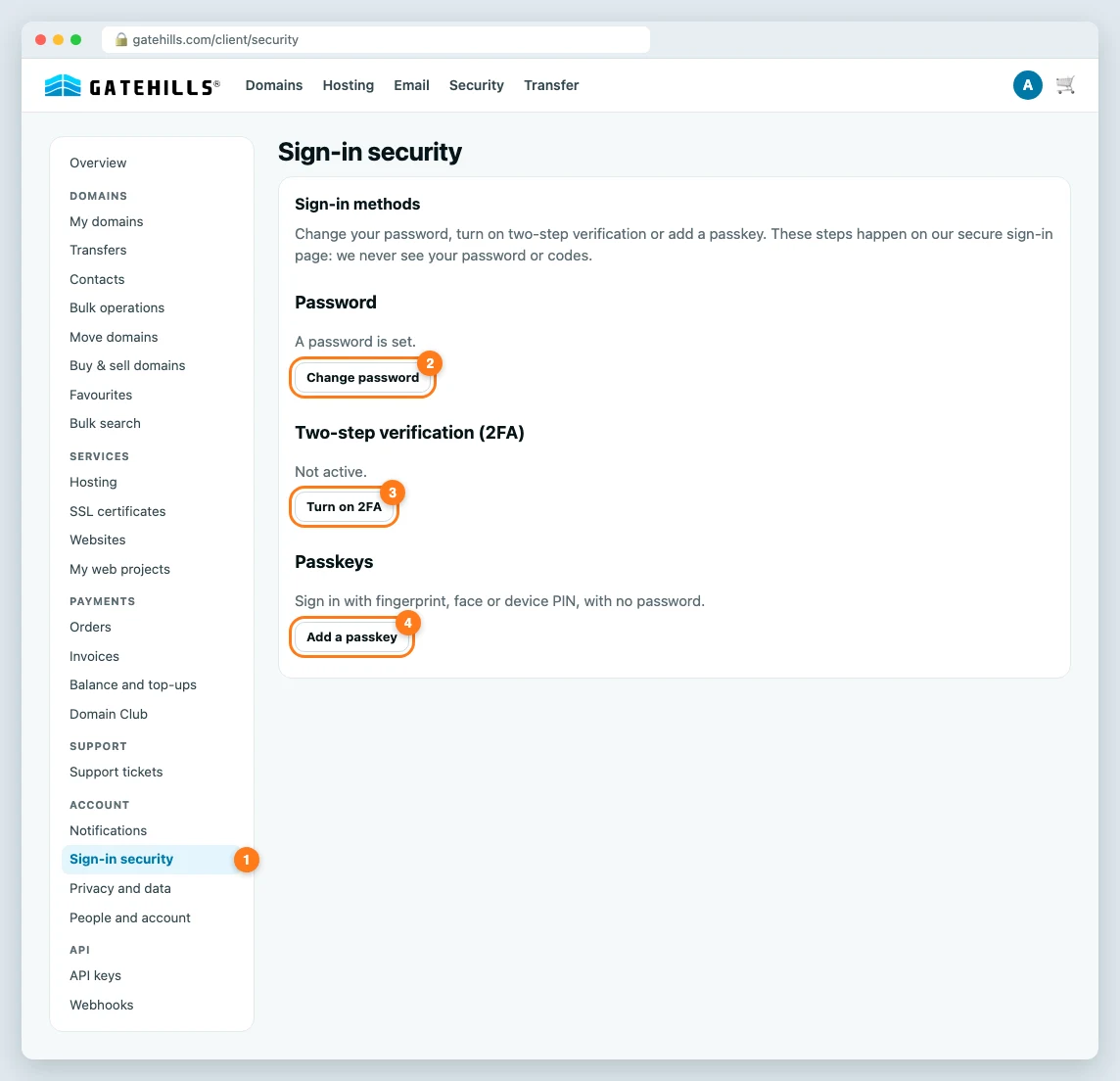
Sign in to the client area and choose “Sign-in security” in the “Account” group of the menu (1).
- Change or set your password
Click “Change password” (2). You go to our secure sign-in page, choose the new password and come back. If you always signed in with Google or Apple and have no password yet, the button is “Set a password”.
- Turn on two-step verification
Click “Turn on 2FA” (3) and scan the QR code with an authenticator app (for example Google Authenticator, Microsoft Authenticator or 1Password). Enter the 6-digit code the app shows. From now on we ask for a code from the app after your password.
- Add a passkey
Click “Add a passkey” (4) and follow your browser or phone: confirm with your fingerprint, face or device PIN. The passkey appears in the list with its date. You can add one for each device you use.
- Check the result
Back on the page, a message confirms the change, for example “Two-step verification has been set up.” If you cancelled on the sign-in page, you see “No changes were made.”
Which sign-in method should you use?
| Method | How you sign in | Main benefit | Button |
|---|---|---|---|
| Password | Email address and password | Works on any device | “Change password” or “Set a password” |
| Two-step verification (2FA) | Password plus a 6-digit code from an authenticator app | A stolen password is not enough | “Turn on 2FA” |
| Passkey | Fingerprint, face or device PIN | No password to steal; a fake website cannot use it | “Add a passkey” |
| External sign-in | Your Google, Microsoft, Facebook, Apple or UAE PASS account | No extra password to remember | “Link Google” and the other providers |
For the best account security, use a password with 2FA and add at least one passkey. Two methods also give you a way back in if you lose a device. Reseller accounts must keep 2FA on: for them the page shows "Required for resellers."
If 2FA is already active, the button reads Set up again. Use it when you move the authenticator app to a new phone.
What happens if you lose your phone?
If you lose the phone with your authenticator app, sign in with another method you have set up: a passkey on another device or a linked external account. Then open Sign-in security and click Set up again to connect 2FA to the new phone. If you have no other way in, write to us with the contact form.
How do you sign in with Google, Apple or UAE PASS?
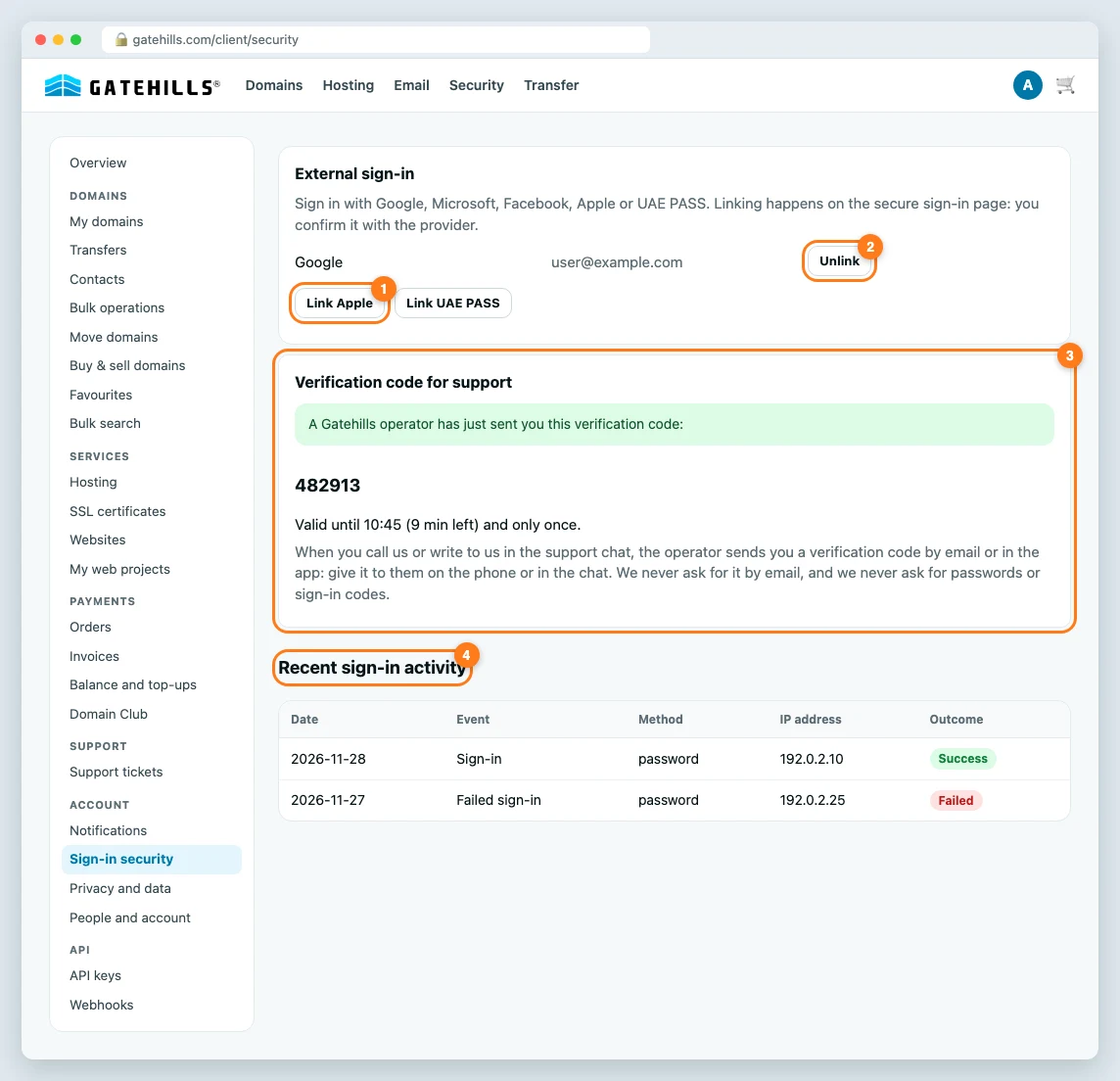
In the External sign-in section click Link Google, Link Apple or another provider (1): you confirm on the provider's page and come back. From then on you can sign in with that account. Only the providers that are not linked yet appear as buttons.
To remove a provider click Unlink (2). If it is your only way to sign in, the page does not allow it: set a password or add a passkey first.
What is the verification code for support?
The verification code for support is a one-time 6-digit code. It proves to our operator that it is really you. When you call us or write in the support chat, the operator sends it to your account email address (if verified), to the Gatehills app and, where available, by SMS. After you sign in, you also see it in the Verification code for support box (3).
Read the code to the operator. The operator does not see it: they type what you read and the system checks it. The code is valid for 10 minutes and only once. A new code replaces the previous one. After 5 wrong attempts the code is cancelled and the operator can send a new one.
How do you check your recent sign-ins?
The Recent sign-in activity table (4) lists the last 90 days. Each row shows the date, the event, the method, the partly hidden IP address and the outcome: Success or Failed.
Events include sign-ins, failed sign-ins, sign-outs, password changes and resets, 2FA set up or removed, email address changes and linked external accounts. If you see an access you do not recognise, change your password right away, check your linked sign-ins and contact us.
Account security checklist
- Use a password you do not use on other websites.
- Turn on two-step verification.
- Add a passkey on each device you use often.
- Unlink external accounts you no longer use.
- Look at the recent sign-in activity from time to time.
- Never share your password, your 2FA codes or the support code by email.
Can I remove two-step verification?
Yes, with Remove 2FA. For reseller accounts 2FA is required, so the button is not shown.
I changed my password. Why does the page ask me to check my linked sign-ins?
For 14 days after a password change or reset we remind you to check your external sign-ins: anyone who knew your old password could have linked their own account. Unlink any provider you do not recognise.
What is a passkey?
A modern way to sign in without a password: your device keeps a secret key and unlocks it with your fingerprint, face or PIN. It cannot be stolen by a fake website. Passkeys follow an open standard of the FIDO Alliance.
How long is the verification code for support valid?
10 minutes, and only once. If it expires or you enter it wrong 5 times, ask the operator to send a new one.
Does a secondary user have their own sign-in settings?
Yes. Each person signs in with their own credentials and manages them on this page. See people and account.
I forgot my password. What do I do?
On the sign-in page use the forgotten password link: we email you a link to choose a new one. If you no longer have access to that email address, write to us with the contact form.