
How to sell your domains on Gatehills
- To sell a domain, open “Buy & sell domains” in the client area. Only the account owner (primary user) can sell.
- Set a buy now price, accept offers or offer lease to own. Listing is free; a commission is deducted only when the domain is sold.
- The buyer pays Gatehills; the domain moves to the buyer and the money, minus the commission, goes to your Gatehills balance.
- You can also sell domains registered elsewhere, and send a protected payment link to a buyer you already know.
To sell a domain on Gatehills, you list it for free in Buy & sell domains with a price, offers or lease to own. When a buyer pays, Gatehills delivers the domain and credits the amount, minus your plan’s commission, to your Gatehills balance. You never handle cards or chase payments.
Gatehills handles payment, transfer and owner change for you: you never chase payments or handle cards. Your listing gets a sale page in the Domains for sale catalogue, and buyers can buy it, make an offer or lease it, depending on the options you choose.
List a domain for sale
- Open Buy & sell domains
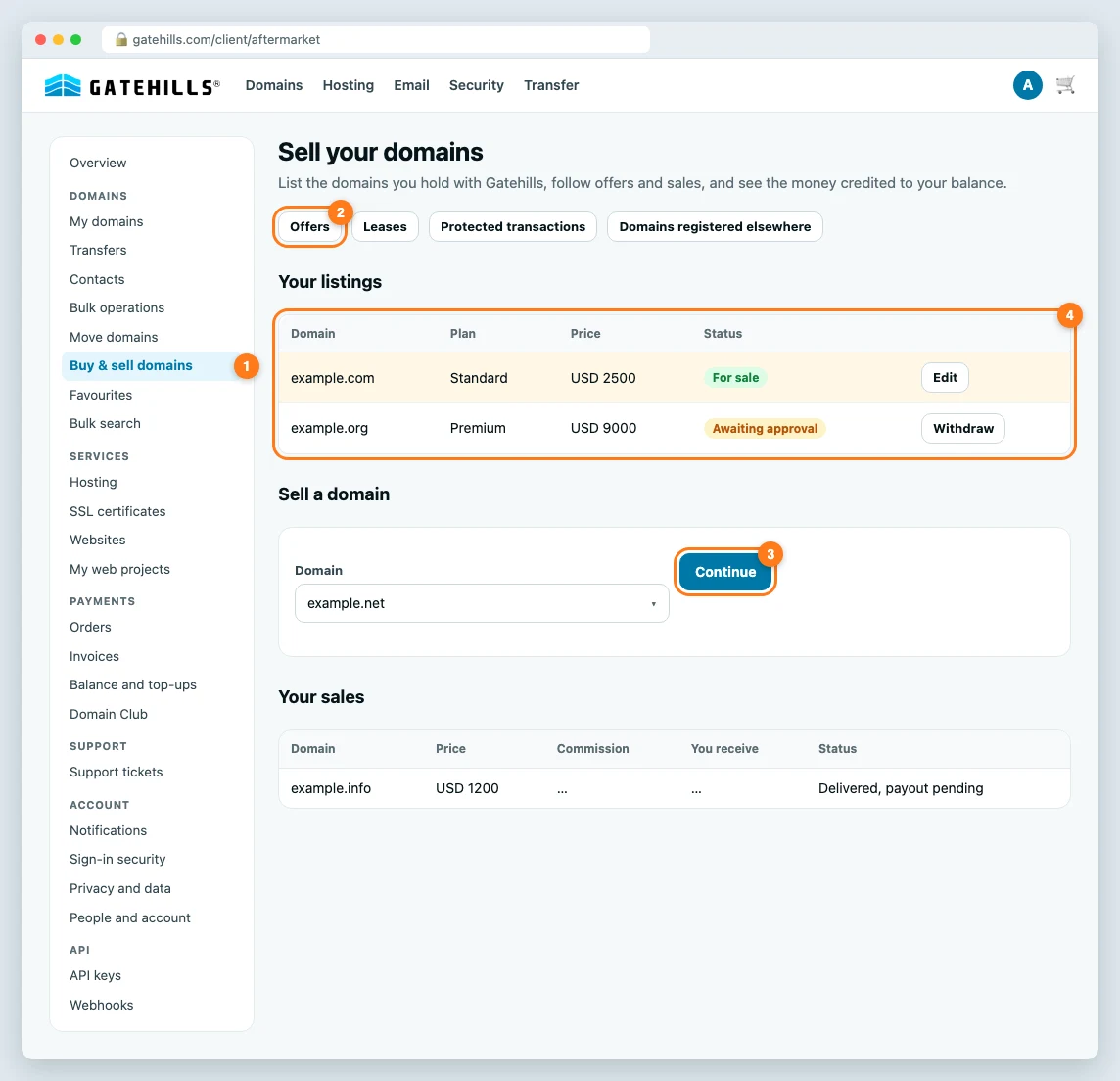
In the client area choose “Buy & sell domains” in the menu (1). If a notice asks you to complete your billing details, do it first: they are needed to sell and to receive the money.
- Choose the domain
Under “Sell a domain” choose the domain and click “Continue” (3). Only active domains that are not in transfer or suspended can be listed.
- Choose the plan
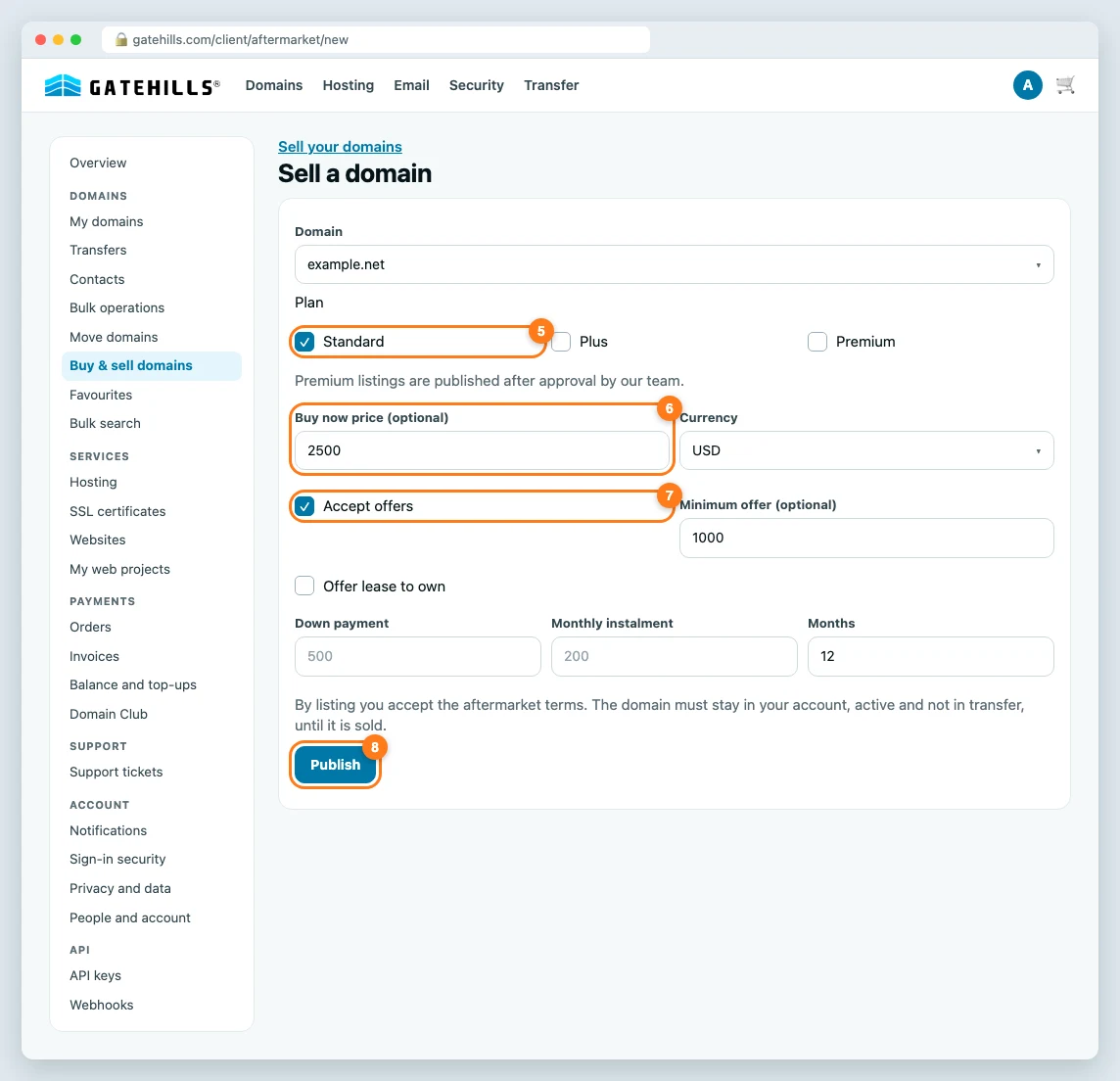
Under “Plan” (5) choose Standard, Plus or Premium. Each plan shows its commission; the higher plans give more visibility. Premium listings are published after approval by our team.
- Set the price and the options
Write the “Buy now price (optional)” (6) and choose the “Currency”. Tick “Accept offers” (7) and, if you like, a “Minimum offer (optional)”. To offer “Offer lease to own”, fill in “Down payment”, “Monthly instalment” and “Months”. You need at least one of the three options.
- Publish
Click “Publish” (8). The listing appears under “Your listings” (4) with the status “For sale”, or “Awaiting approval” for Premium. Keep the domain in your account, active and not in transfer, until it is sold.
How do I edit, pause or withdraw a listing?
In Your listings click Edit to change plan, price and options, or tick Pause the listing to hide it for a while, then click Save. Withdraw removes the listing. A listing that is reserved by a paying buyer, sold or leased cannot be changed.
How do I answer offers?
Click Offers (2) at the top of the page. Under Offers received you see the amount and the buyer’s message (never the buyer’s name or email). Click Accept, Reject, or write a higher amount and click Counter. When you accept, the buyer gets a payment link; the sale is completed when the buyer pays.
When do I get the money after I sell a domain?
Under Your sales you see each sale with the price, the commission and You receive. After delivery the status is Delivered, payout pending; the date shown tells you when the amount reaches your balance. Then it becomes Paid to your balance. Each commission has its invoice, which you find in Invoices. From your balance you can withdraw the money with the usual payout process. For leases, Domains leased to buyers shows how many instalments have been paid.
What do the sale statuses mean?
| Status | What it means |
|---|---|
| Awaiting payment | A buyer is paying. The domain is reserved until the payment is completed. |
| Paid, delivering | The buyer has paid. The domain is moving to the buyer. |
| Delivered, payout pending | The domain is delivered. The amount reaches your balance on the date shown. |
| Paid to your balance | The amount minus the commission is on your Gatehills balance. |
| Not delivered | The domain did not reach the buyer in time. |
| Refunded | The buyer got the money back. |
| Page | When to use it | How it works |
|---|---|---|
| Domains registered elsewhere | The domain is at another registrar | Click “Start verification”, add the TXT record shown at your DNS provider and wait for two checks (or click “Check now”). Then click “List for sale” and enter the “Transfer code (EPP)”. Lease to own is not available. |
| Protected transactions | You already have a buyer and a price | Choose the domain, write the “Buyer’s email”, the price and an optional note, then click “Create and send the link”. Only the account with the buyer’s confirmed email can pay. The commission is lower than for a listing. |
How much does it cost to sell?
Listing is free. When the domain is sold, the commission of your plan is deducted from the amount paid. The plans and commissions are shown under Plans and commissions.
When do I get the money?
The amount minus the commission goes to your Gatehills balance a set number of days after delivery; the date is shown next to each sale.
Do I have to do anything when the domain is sold?
For a domain at Gatehills, no: it moves to the buyer’s account and the owner is updated automatically. For a domain registered elsewhere, keep it unlocked so the transfer with your code can complete. Transfers between registrars follow the ICANN Transfer Policy.
Can someone in my team sell domains?
No, only the account owner (primary user). See people and account.
Can I see how my listing looks?
Yes, click the domain name in Your listings to open its public sale page.
Related guides